Setup
Before you start using Document Phase Management, complete the settings described in this chapter. The phases themselves are set up on the Sales Document Phases page – see Document Phases.
Sales & Receivables Setup
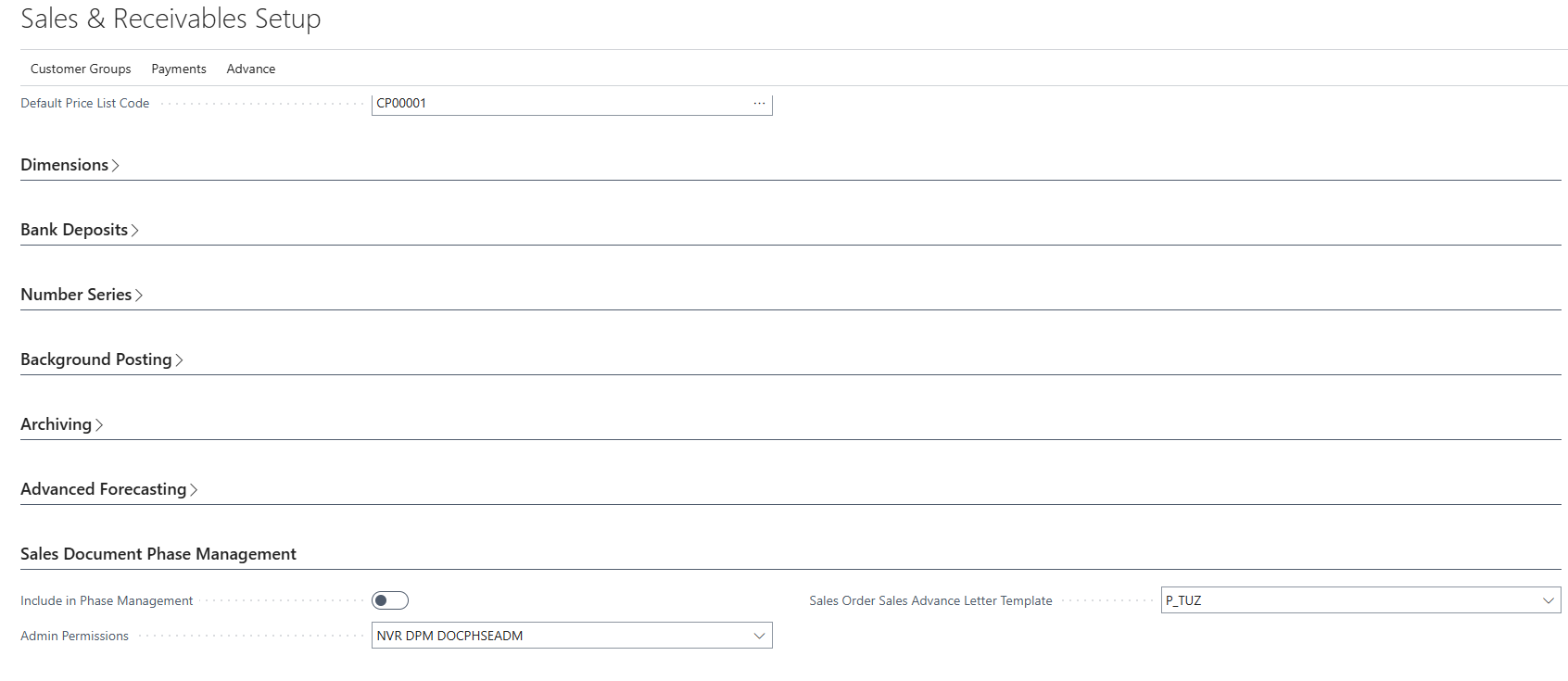
The general settings of the extension are on the Sales Document Phase Management FastTab of the Sales & Receivables Setup page:
- Include in Phase Management – the default value of the Include in Phase Management field on new documents. Only documents with this field enabled are processed by the Phase Management report. The value can then be changed on each document.
- Admin Permissions – the permission set whose members have administrator rights in Document Phase Management, e.g. they can change the Phase Code directly on a document. Usually NVR DPM DOCPHSEADM.
E-mail Scenarios
E-mail notifications are sent through the standard Business Central Email Scenarios. Each supported document type has its own scenario, so notifications for different document types can be sent from different e-mail addresses. Transfer orders are internal documents, so no notifications are sent for them and they have no scenario.
- Open the Email Accounts page and choose the Email Scenarios action. The Email Scenario Assignment page opens.
- Select the e-mail account that should send the notifications and choose the Assign scenarios action.
- Select the scenarios of Document Phase Management:
- Document Phase Management – Sales Order
- Document Phase Management – Sales Invoice
- Document Phase Management – Sales Credit Memo
- Document Phase Management – Posted Sales Invoice
- Document Phase Management – Sales Archive
Note
Notifications cannot be sent until the scenarios are assigned to an e-mail account.

Job Queue
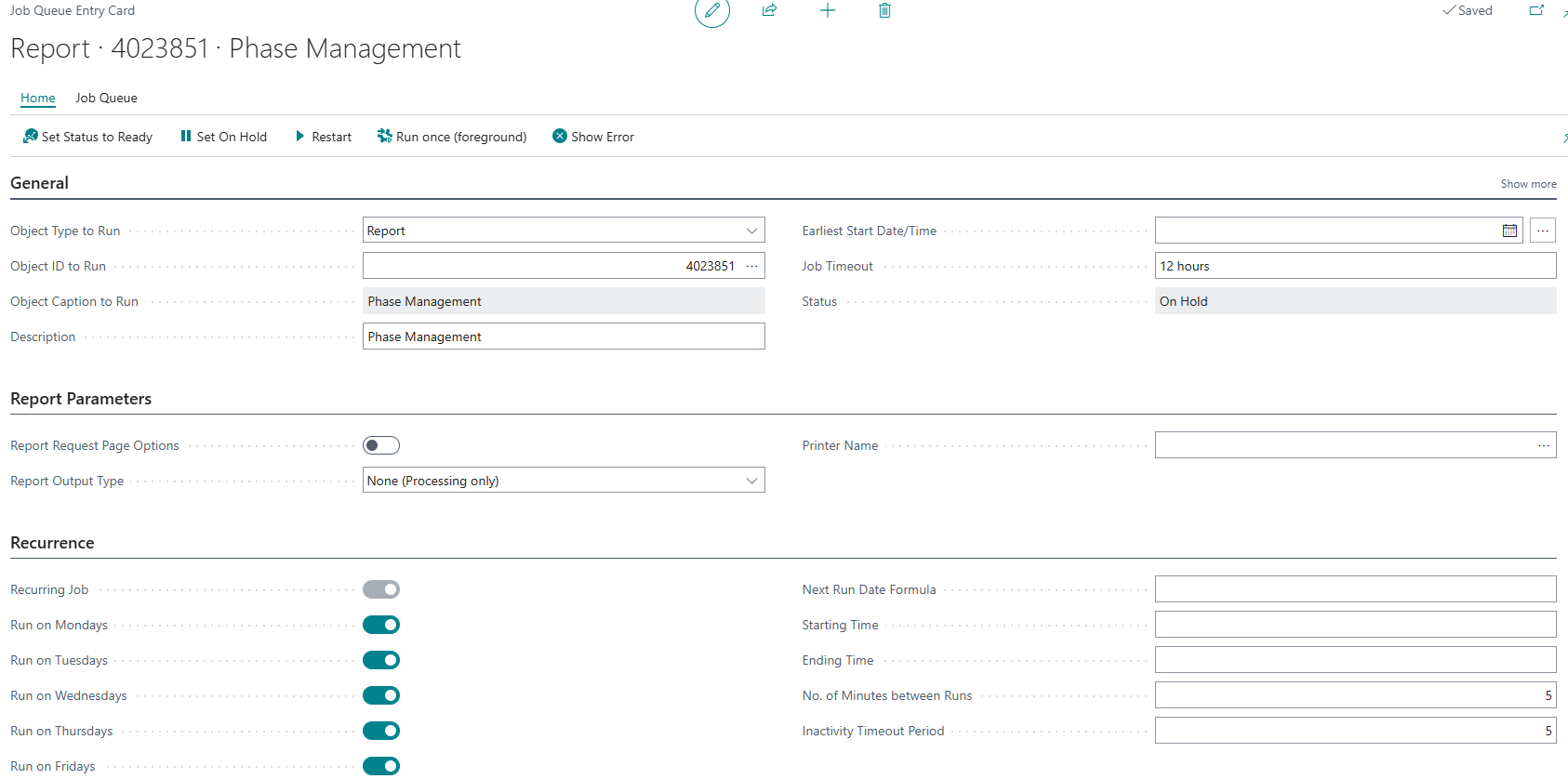
Automatic phase changes are performed by the Phase Management report (ID 4023851). To process documents regularly, schedule the report in the job queue:
- Open the Phase Management report from the Document Phase Management menu, set the options and filters and choose Schedule.... Alternatively, create a new entry on the Job Queue Entries page with Object Type to Run Report and Object ID to Run 4023851.
- On the Job Queue Entry Card, set Report Output Type to None (Processing only).
- Enable Recurring Job, select the days and set No. of Minutes between Runs – e.g. 5 minutes. The shorter the interval, the faster documents move between phases.
- Choose Set Status to Ready.
For a description of the report options, see Automatic Phase Changes.
Permissions
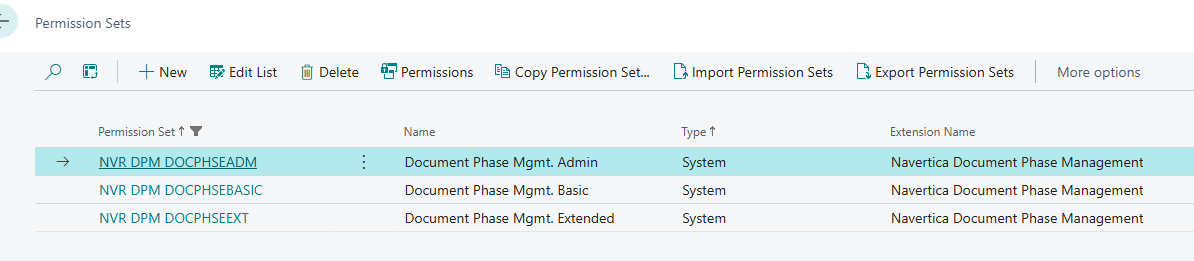
The extension installs three permission sets:
| Permission Set | Name | Intended for |
|---|---|---|
| NVR DPM DOCPHSEBASIC | Document Phase Mgmt. Basic | Users who work with the documents. Allows reading the phase fields on documents and manually selecting phases marked as Manual Phase. |
| NVR DPM DOCPHSEEXT | Document Phase Mgmt. Extended | Users who set up phases and review the logs. |
| NVR DPM DOCPHSEADM | Document Phase Mgmt. Admin | Administrators. Full access to all tables and fields of the extension, including changing the current phase directly on a document. |
The administrator permission set is defined in the Admin Permissions field in Sales & Receivables Setup.
Role Center
The extension does not have its own role center. The Sales Order Processor role center is extended with:
- the Document Phase Management menu with the pages Phase Management, Document Phases, Document Phases Logs, Document Phases Notifications Attachments and Document Phases Translations,
- the Phase Validation Errors cues that show the number of documents per document type whose last phase change ended with an error.

