Working with OSS Statements
Creating a New Statement
- Search for OSS Statements and open it.
- Click New to create a new statement.
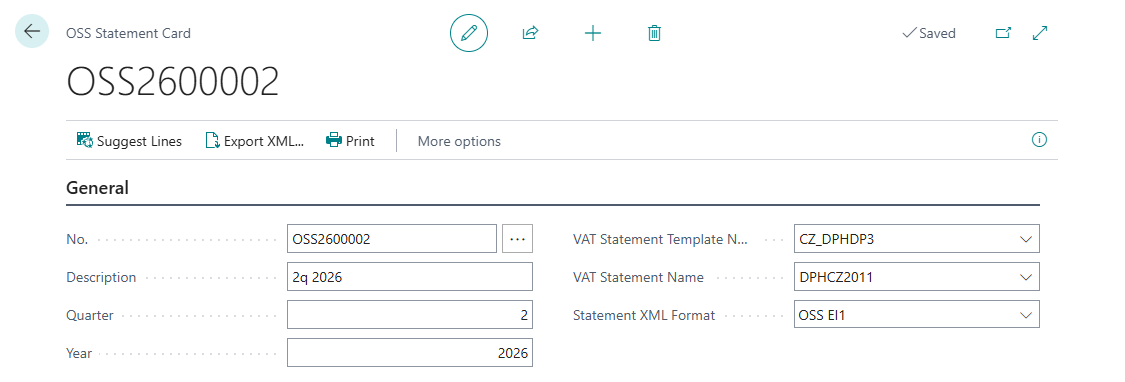
- Fill in the header fields:
| Field | Description |
|---|---|
| No. | Assigned automatically from the No. series defined in General Ledger Setup |
| Description | Optional free-text description |
| Year | Fiscal year for the statement (e.g., 2025) |
| Quarter | Quarter number 1–4 |
| VAT Statement Template Name | Automatically populated from the template configured in General Ledger Setup |
| VAT Statement Name | Automatically populated from VAT Statement Name configured in General Ledger Setup |
| Statement XML Format | Select OSS EI1 for Czech authority submission |
Suggesting Statement Lines
Once the header is completed, click the Suggest Lines action.
The system will:
- Validate that Year, Quarter, VAT Statement Template, and VAT Statement Name are all filled in.
- Ask for confirmation if existing lines are already present (they will be deleted and replaced).
- Scan all open, unassigned VAT Entries that:
- Match VAT Statement lines marked as OSS = Yes.
- Have a VAT Reporting Date within or before the end of the selected quarter.
- Create one OSS Statement Line per matching VAT Entry, converting amounts to the OSS reporting currency using the Currency Exchange Rates OSS table.
- Mark each processed VAT Entry with the Statement No. and Line No. so it cannot be picked up again.
Note
The OSS Statement lines also include an editable field called Correction. The Suggest Lines function evaluates the VAT Date and determines whether the transaction belongs to a previous quarter or fiscal year rather than the currently reported period. If so, the field is automatically set to Yes.
Reviewing and Editing Statement Lines
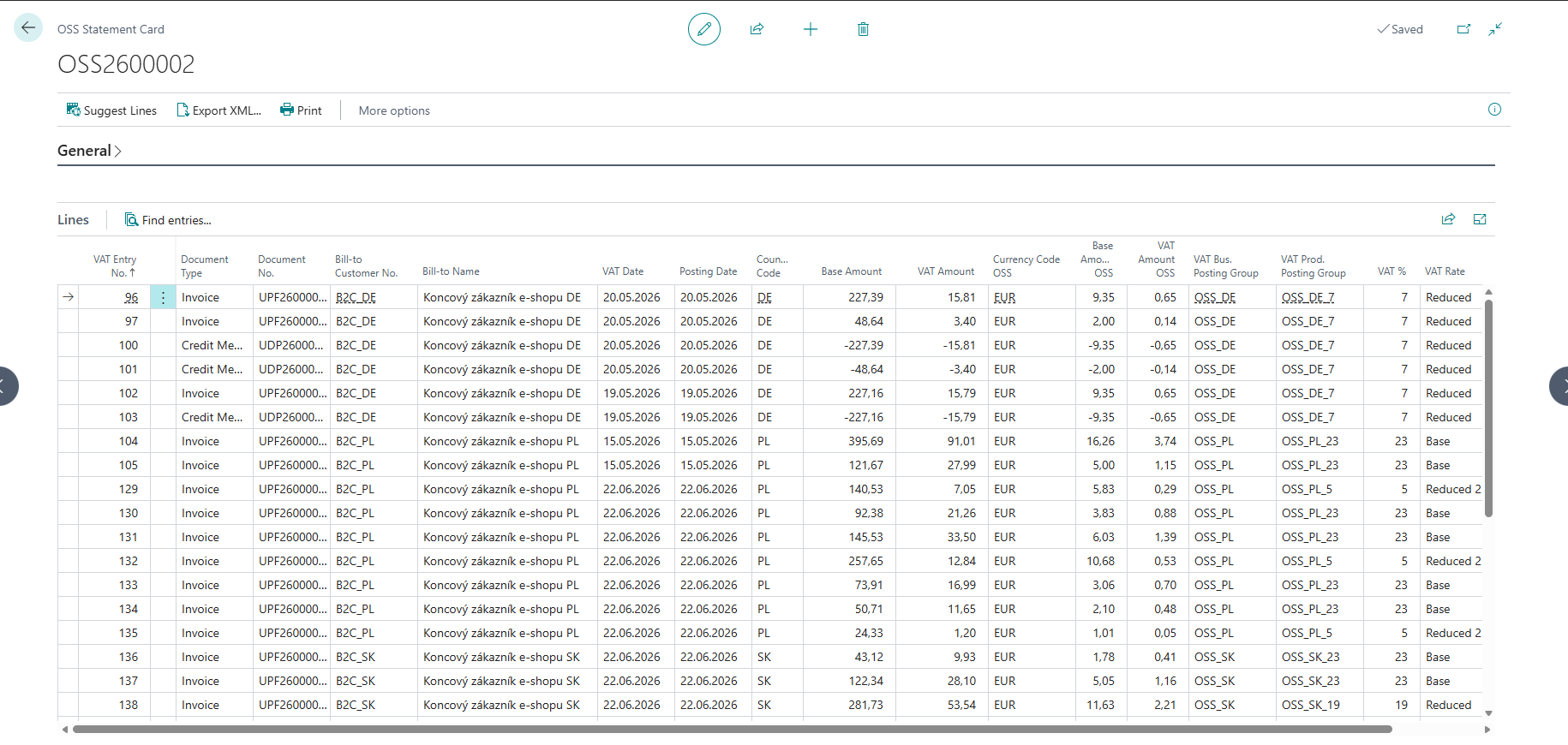
The statement lines subform shows all collected VAT entries with the following key columns:
| Column | Description |
|---|---|
| VAT Date | The VAT Reporting Date of the original entry |
| Country/Region Code | Destination country |
| Document Type / No. | The original sales document |
| Bill-to Customer No. / Name | The customer |
| Currency Code OSS | The reporting currency |
| Base Amount / VAT Amount | Amounts in the original invoice currency |
| Base Amount OSS / VAT Amount OSS | Amounts converted to the OSS reporting currency |
| VAT % | The applied VAT rate |
| VAT Rate | Classification (Base / Reduced / Reduced 2) |
| Correction | Marks correction lines (exported to O-section in EI1) |
| Exclude From Export | Prevents a line from appearing in the XML export / dataset for printing |
Note
It's not possible to delete individual lines, from OSS Statement but lines also include an editable field called Exclude From Export, that prevents a line from appearing in the XML export / dataset for printing.
Exporting to XML
Click the Export XML action on the Statement Card.
The system generates actually XML file only in accordance with OSS EI1 XML Structure Description and prompts you to download it. The file is named OSS Statement [No.].xml.
OSS EI1 structure:
- R-lines (regular): Statement lines where Correction = No, aggregated by destination country, VAT %, and rate type (standard Z / reduced S).
- O-lines (corrections): Statement lines where Correction = Yes, grouped by destination country, rate, and original quarter.
Note
The current functionality does not distinguish between supply type code goods and services; therefore, all transactions are reported as goods (G).
Printing the OSS Statement
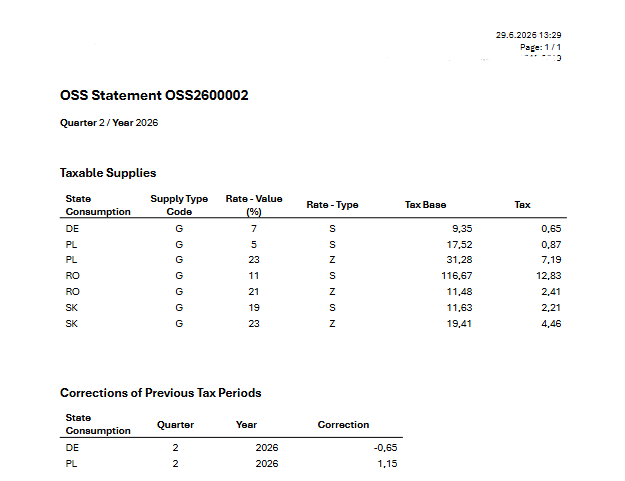
Click the Print action on the Statement Card to produce a printable version of the OSS Statement.