Return Claim Card
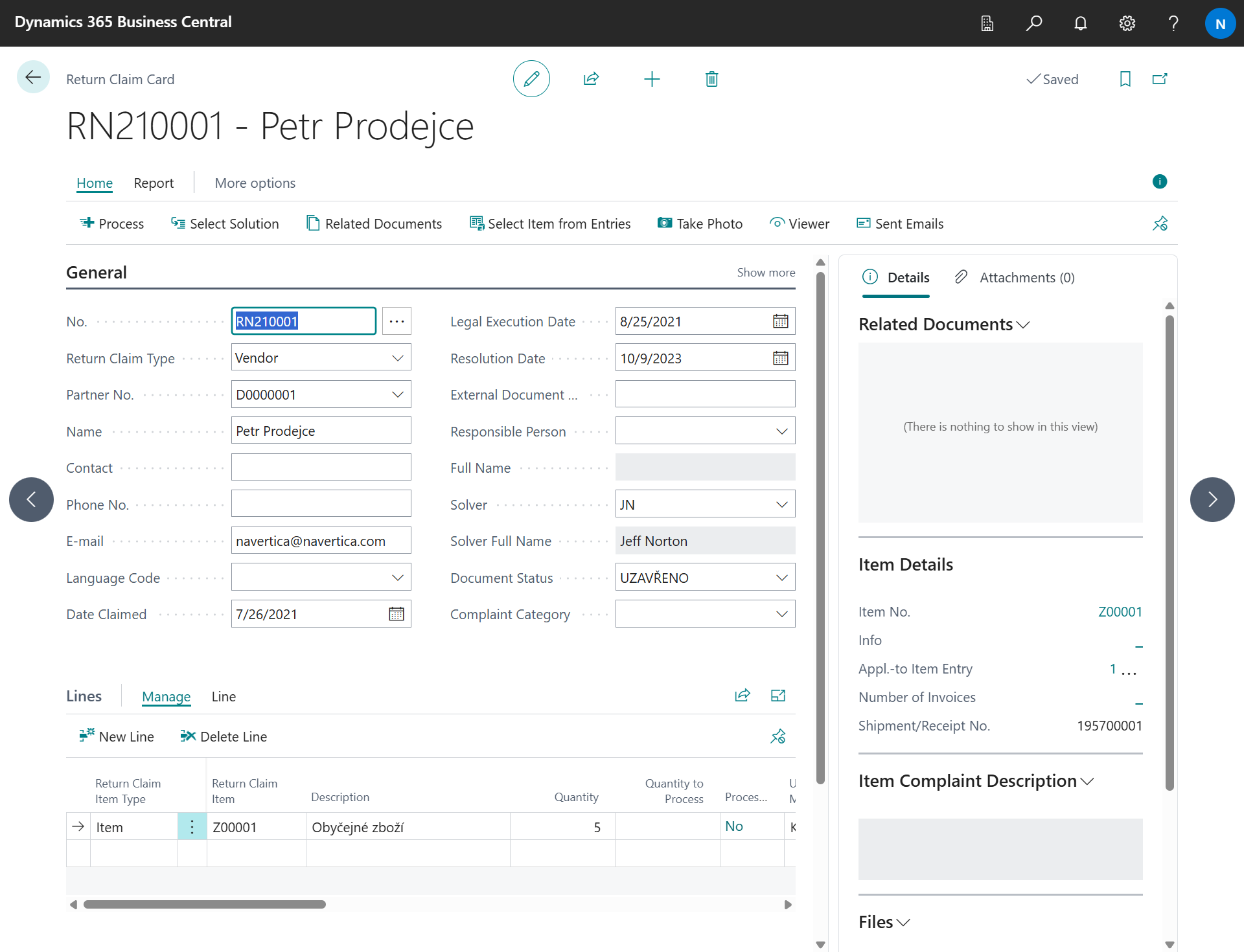
Return Claim is the primary card when placing a claim for items. The Return Claim card consists of a header, lines and Return Claim Entries. The header contains basic data, such as the type of Return Claim, the link to the business partner, the document status, etc. The Return Claim lines define the subjects of the Return Claim and their basic description (serial number, lot, quantity). Return Claim Entries record every performed solution and link the Return Claim to the created documents. Closed Return Claims are moved to the Return Claim Archive List.
Creating a Return Claim
There are several ways to create a Return Claim:
-
Manually - open the Return Claim List and choose New.
-
From posted documents and item ledger entries - use the Create Return Claim Worksheet, which is also available from the Return Claim List through the action Create Return Claim Worksheet.
-
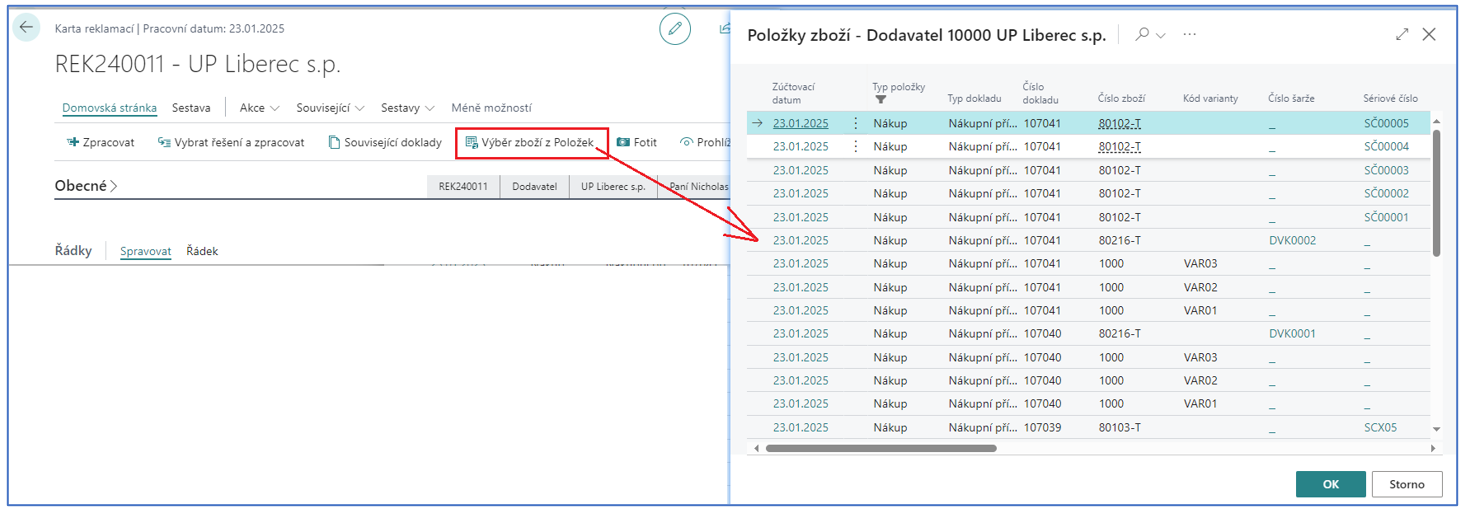
From item ledger entries of the partner - use the action Select Item from Entries on the Return Claim card. The item ledger entries of the customer/vendor are offered and the selected entries are inserted as Return Claim lines.
-
From an external system - through the API.
Return Claim Header
General Tab
-
No. - Return Claim card numbering based on the number series specified in the setup.
-
Return Claim Type - defines whether it is a Customer, Vendor or Internal Return Claim. Internal Return Claims are not bound to a customer or vendor - they record claim cases of internal processes.
-
Partner No., Name, Address, Post Code, City, Country/Region Code - the customer / vendor is selected here (according to the type of Return Claim) and on the basis of the filled in number, the information about the name, address, etc. is filled in.
-
Contact, Phone No., E-mail - contact information of the partner. The E-mail address is used as the recipient of the e-mail notifications.
-
Language Code - the language of the partner. Customer e-mail notifications and protocols are created in this language.
-
Date Claimed - the date on which the Return Claim was created.
-
Legal Execution Date - the date of expiry of the statutory period for the settlement of the claim. It is calculated from the Date Claimed using the Execution Date Formula (Customer/Vendor) from the setup, or the Return Claim Execution Date Interval from the partner card.
-
Resolution Date - the date of completion of the Return Claim. It is filled in automatically when the status changes to Finished.
-
Created by - User ID, Created by - Date & Time - the user who created the Return Claim card and the date and time of the creation.
-
External Document No. - a number identifying the document on the basis of which the right to claim the items / service arose.
-
Responsible Person - the code of the employee who is responsible for processing the Return Claim; Full Name shows their full name.
-
Solver - the employee who is currently resolving the Return Claim; Solver Full Name shows their full name.
-
Document Status - the current status (phase) of the Return Claim. The statuses are user-defined in Document Statuses. When the status is changed, the change is logged (see Status Change List) and the e-mail notifications set up for the status can be sent. Selecting a status mapped to the internal status Closed closes the Return Claim and moves it to the archive.
-
Complaint Category - categorization of the Return Claim, defined in Complaint Categories.
Shipping Tab
For customer Return Claims, the address to which the company should send any compensation is registered on this tab (fields Ship-to Code, Ship-to Name, Ship-to Address, Ship-to Address 2, Ship-to Post Code, Ship-to City, Ship-to Contact, Ship-to Country/Region Code).
Return Place Address Tab
The tab is displayed for vendor Return Claims only. The Return Place Code selects the location from which the claimed items are returned to the vendor; the address fields (Return Name, Return Address, Return Post Code, Return City, Return Country/Region Code, Return Contact, Return Email, Phone No.) are filled in from the location and can be modified.
Emails Tab
The tab is displayed for customer Return Claims only. The switches (Send Customer Email on Status New, ... Pending, ... To Review, ... Reviewed, ... Finished, ... Closed) enable the automatic sending of an e-mail notification to the customer on the given status change of this Return Claim. The default values are taken from the Return Claim Setup.
Return Claim Lines
The Return Claim lines are used to record the claimed items / services. The registered fields are:
-
Return Claim Item Type - determines whether it is a Return Claim of a Service, an Item or a Non Stock Item (an item not recorded in Business Central). If the user selects the type Item, he selects the subject of the Return Claim from the items in the next field.
-
Return Claim Item - selection from the items (for lines with the type Item).
-
Description - a description of the service or of the item outside the register.
-
Quantity - quantity related to the subject of the Return Claim.
-
Quantity to Process - identifies the quantity which the solver wants to process by the next run of the Process action. Based on this quantity, the solution code and the Process action, the Return Claim line is processed.
-
Processed - indicates that the line is fully processed by the current solution.
-
Qty. on Return Claim Entry - the quantity already processed, summed from the Return Claim Entries of the line.
-
Unit of Measure Code - unit of measure related to the subject of the Return Claim.
-
Variant Code - variant of the item.
-
Serial No., Lot No., Package No. - item tracking of the claimed item. The fields are filled in automatically when the original item ledger entry is applied; otherwise they can be entered manually.
-
Appl.-to Item Entry - the original item ledger entry by which the item was sold / purchased. Use the line action Add Line by Item to find and apply it.
-
Shipment/Receipt No. - identification of the document by which the items / services were delivered / received.
-
External Document No. - the number of the original invoice.
-
Physical Item Place - predefined code list with the values Source Place, Claim Location, Customer, Vendor, Service. This value identifies where the subject of the Return Claim is currently located.
-
Location Code - the location where the item is physically stored.
-
Return Claim Reason Code - code list defined in Return Claim Reason Codes which categorizes the reason for the Return Claim.
-
Customer Required Solution - the solution requested by the customer when placing the claim (defined in Customer Requested Solutions).
-
Solution Code - the identification of the solution that will be used to resolve the claim line. The solution codes are defined in Return Claim Solution Codes. By using a combination of Solution Code, Quantity to Process and the Process action, the actual resolution of the claim occurs.
-
Unit Cost - the original acquisition cost of the claimed item. It is used on the created documents when the item was not sold or purchased in Business Central.
-
Service Company, Service Company Ship to Code - identification of the external service company and its order address for the External Service solution. The destination location of the transfer order is taken from the Service Location of the order address.
-
Post-Warranty Service - indicates a post-warranty service; the Service Fee is then added to the Service List.
-
Disagreement No., Disagreement Status - if a Disagreement is created from the Return Claim line, the number and status of the linked Disagreement are shown here.
-
Return Claim to Vendor - indicates that vendor Return Claims are linked to this customer Return Claim line.
-
Related Return Claims Status - shows the lowest status of the related vendor Return Claims (displayed on customer and internal Return Claims).
-
Vendor No. - the vendor of the item (can be filled in automatically from the item card, see the setup).
-
Sales Date - the date of the original sale.
Return Claim Entries
Return Claim Entries record every processing step of a Return Claim line - the used solution, the processed quantity and the link to the created document (return order, credit memo, transfer order, item ledger entry etc.).
-
A Return Claim line can have several Return Claim Entries.
-
A Return Claim Entry can be linked to the line of a related document (return order, order, transfer, item ledger entry, invoice, credit memo, ...).
-
The line of a related document can be linked through the Return Claim Entry to exactly one Return Claim line.
The entries of the selected line are displayed in the Entries part directly on the Return Claim card. The fields are Solution Name, Document Area, Document Type, Document No., Document Line No., Quantity, Unit Of Measure Code and Description. With the actions Move Up and Move Down the presentation order can be changed, the action Show Document opens the related document.
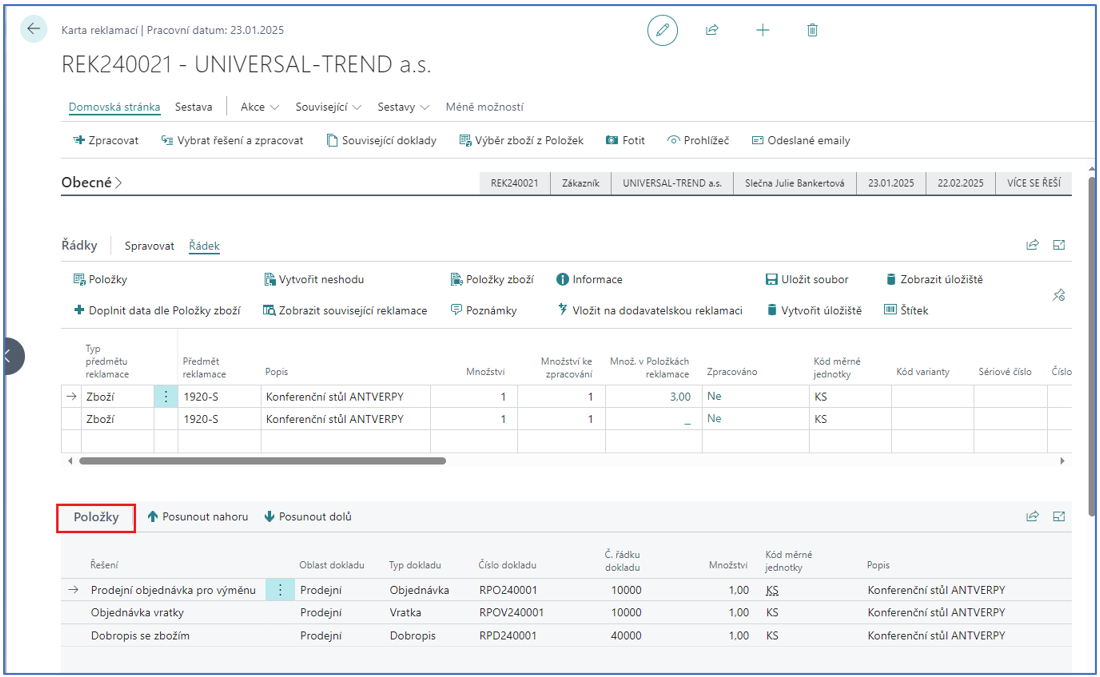
The complete list is available on the Return Claim Entries page (also from the role center). The action Delete Entry deletes an entry - it is available only to users with the permission set specified in the Role ID for deleting return claim entries setup field.
Processing a Return Claim
In the Return Claim line, fill in the Quantity to Process, select the Solution Code based on the assessment (whether it is a justified Return Claim, how the customer will be compensated, etc.) and then press Process (F11).
Processing increases the processed quantity and creates Return Claim Entries with links to the automatically created documents (see the table of solutions in Return Claim Solution Codes). For document-creating solutions, you select whether to create a new document (credit memo, return order) or use an existing one. A summary of the created documents is displayed at the end.
The action Select Solution (F9) combines both steps: it opens the list of solution codes, writes the selected code into all lines with a nonzero Quantity to Process and processes them.
When creating sales / purchase documents from the Return Claim, the original prices, line and invoice discounts and the dimensions are transferred from the original invoice. For credit memos with a charge, the charge is assigned automatically to the original document.
External Service
The external service of claimed items is controlled by the solution codes External Service, Receive from Ext. Service and Service List:
-
Receive the claimed item to the location (e.g. by the Receive to Inventory solution).
-
Fill in the Service Company and Service Company Ship to Code on the line and process with the External Service solution. A transfer order from the line location to the service location is created; post the transfer order.
-
After the item returns from the service company, process with the Receive from Ext. Service solution - the item is returned by an item reclassification journal.
-
Issue the service sheet for the customer with the Service List solution - a sales order is created with the Service Standard Text and, for post-warranty service, the Service Fee.
Return Claim Actions
Send E-mails
The actions Send E-Mail to Customer, Send E-Mail to Responsible Person, Send E-Mail to Solver and Send E-mail to Vendor send an e-mail notification directly from the Return Claim card. The subject and the body of the message are defined per document status (and, for the customer, per language) in Document Statuses. The customer or vendor protocol can be attached automatically. The sending e-mail account is determined by the standard e-mail scenario (see Email Scenario Setup).
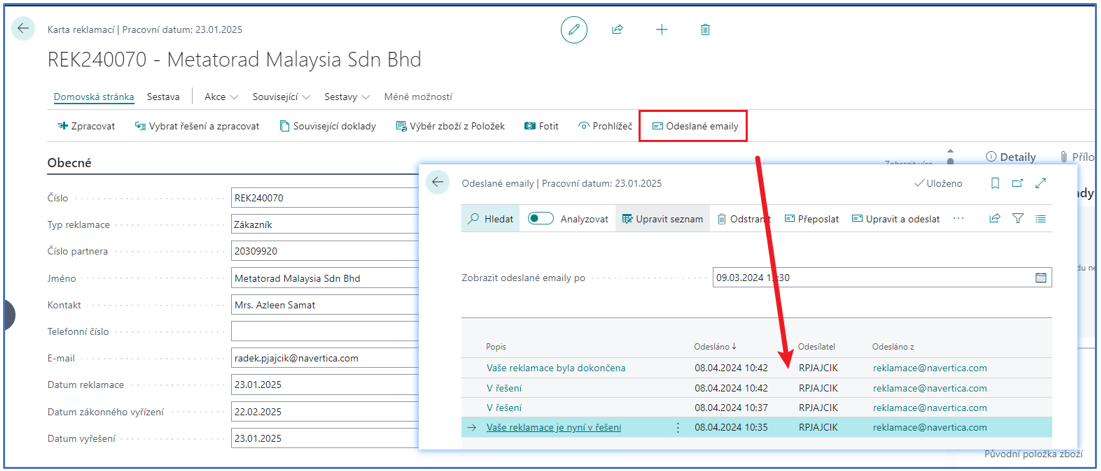
All e-mails sent for the Return Claim can be displayed with the action Sent Emails.
Take Photo and Files
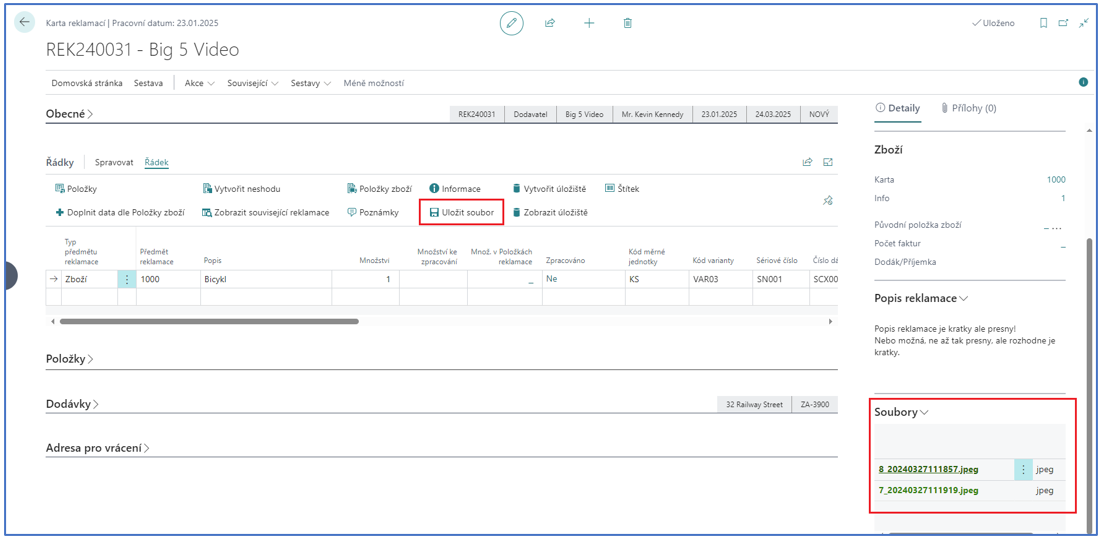
The action Take Photo takes a photo of the claimed item with the device camera (the user selects the line the photo belongs to). Files and photos are stored in the storage configured in the Storage FastTab of the Return Claim Setup and displayed in the Files FactBox. Files can also be uploaded with the line action Upload File, downloaded (click the file name), deleted, and browsed with the action Viewer. The action Reload files refreshes the FactBox.
Related Documents
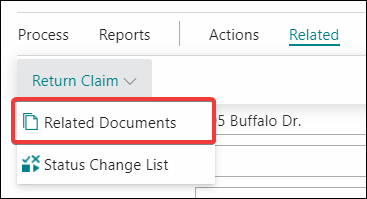
The action Related Documents displays all documents associated with the given Return Claim card. The same documents are continuously displayed in the Related Documents FactBox. The list is built from the Return Claim Entries and from the documents carrying the Return Claim number (see Related Documents Setup).
Select Item from Entries
Offers the item ledger entries of the partner from the header; the selected entries are inserted as new Return Claim lines including the item tracking and the link to the original entry.
Status Change List
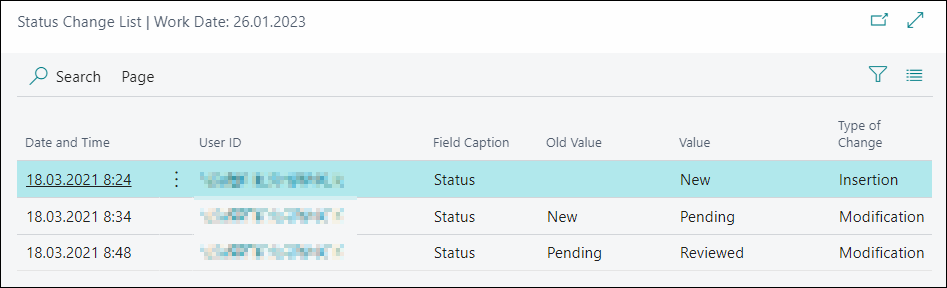
The action shows the history of status changes, i.e. when, by whom, from what and to what the document status was changed.
Return Claim Line Actions
It is possible to perform the following actions on the Return Claim line:
-
Ledger Entries - displays the Return Claim Entries created for the claim line.
-
Add Line by Item - finds the original item ledger entry by the item, lot, serial or package number and fills in the line data (the original entry, lot, serial no., invoice, shipment/receipt).
-
Create Disagreement - a function that creates a Disagreement based on the data of the Return Claim line. The Disagreement is tied to the Return Claim line, not to the entire Return Claim. If several lines are registered on the Return Claim, several Disagreements can be created. A Disagreement should arise whenever a Return Claim is recognized as justified.
-
Show Related Return Claims - displays the vendor Return Claims created for a customer Return Claim line (or the customer Return Claim for a vendor Return Claim line).
-
Add to Vendor Claim - adds the selected lines of a customer or internal Return Claim to an existing or new vendor Return Claim. In principle, several vendor Return Claim lines can be recorded for one item in a customer Return Claim.
-
Item Ledger Entries - displays the item ledger entries for the line.
-
Comments - with this function it is possible to add more extensive notes to the Return Claim line.
-
Information - allows you to enter additional rich text information about the subject of the Return Claim. The text types are Receipt State, Complaint Description, Complaint Solution and Complaint Solution Detail.
-
Upload File - uploads a file to the storage folder of the line.
-
Create Container - creates the storage folder for the line manually (if it is not created automatically, see the setup).
-
Open storage - opens the storage folder in the storage client.
-
Label - prints the Return Claim Item Label with a QR code of the line.
-
Take Photo - takes a photo for the line.
FactBoxes
-
Related Documents - the documents related to the Return Claim, with a drill-down to each document.
-
Item Details - details of the item of the selected line with links to the item card, the number of invoices, the original item ledger entry, the shipment/receipt and the vendor Return Claims.
-
Item Complaint Description - the Complaint Description text of the selected line.
-
Files - the files and photos of the selected line; files can be uploaded by drag & drop, downloaded or deleted here.
-
Entries (on the Return Claim List) - the solutions of the selected claim.
Closed Return Claims
A Return Claim is closed by selecting a document status mapped to the internal status Closed. The closed Return Claim is moved to the Return Claim Archive List and can be opened in the read-only Closed Return Claim card. The action Reopen returns the Return Claim among the open ones (the status is set to Pending).
Related Return Claim Documents
The Return Claim number is recorded on the standard documents related to the Return Claim procedure:
-
Sales Order (created by the Change and Service List solutions)
-
Sales Return Order, Purchase Return Order
-
Sales Credit Memo, Purchase Credit Memo
-
Transfer Order (external service)
-
Item journals and the posted documents
The Return Claim No. field is displayed on these documents. When posting, standard Business Central saves the Return Claim number into the External Document No. of the item ledger entries, so all related entries can be displayed with the Item Ledger Entries actions.
The standard function Create Return-Related Documents on the sales return order is modified in this respect: if the Return Claim number is filled in the sales return order, the function copies the Return Claim number to all documents created by this function.
API
The extension provides an API for creating Return Claims from external systems and for reading the existing Return Claims:
.../api/navertica/cpm/v1.0/companies({id})/returnClaimHeaders?$expand=returnClaimLines