Setup
The setup of the Complaint Management extension consists of the general application setup (Return Claim Setup), number series, and code lists of statuses, solutions and other values used on Return Claims and Disagreements.
The fastest way to set up the extension is the assisted setup wizard (see below). All settings can also be maintained manually on the pages described in this chapter.
Assisted Setup
The extension registers the guide Set up Navertica Complaint Management Module in the standard Business Central Assisted Setup. The wizard guides you through all the important settings:
- General settings of Return Claim Setup (item charges, G/L accounts, journals, location, protocol report).
- Number series - the series for Return Claims and Disagreements are created automatically, the remaining series are taken over from Sales & Receivables Setup and Purchases & Payables Setup.
- Document Statuses - the default statuses are created automatically, including the e-mail notification settings.
- Return Claim Solution Codes - all available solution codes are created automatically.
- Return Claim Reason Codes, Identify Disagreements, Disagreement Reason and Problem Codes.
- User setup - selection of users, their permissions (admin/user) and the role center assignment.
- Related Documents Setup.
Note: To run the wizard, you need the SUPER permission set or the NVR CP MGT ADMIN permission set.
Return Claim Setup
The general settings can be found on the Return Claim Setup page.
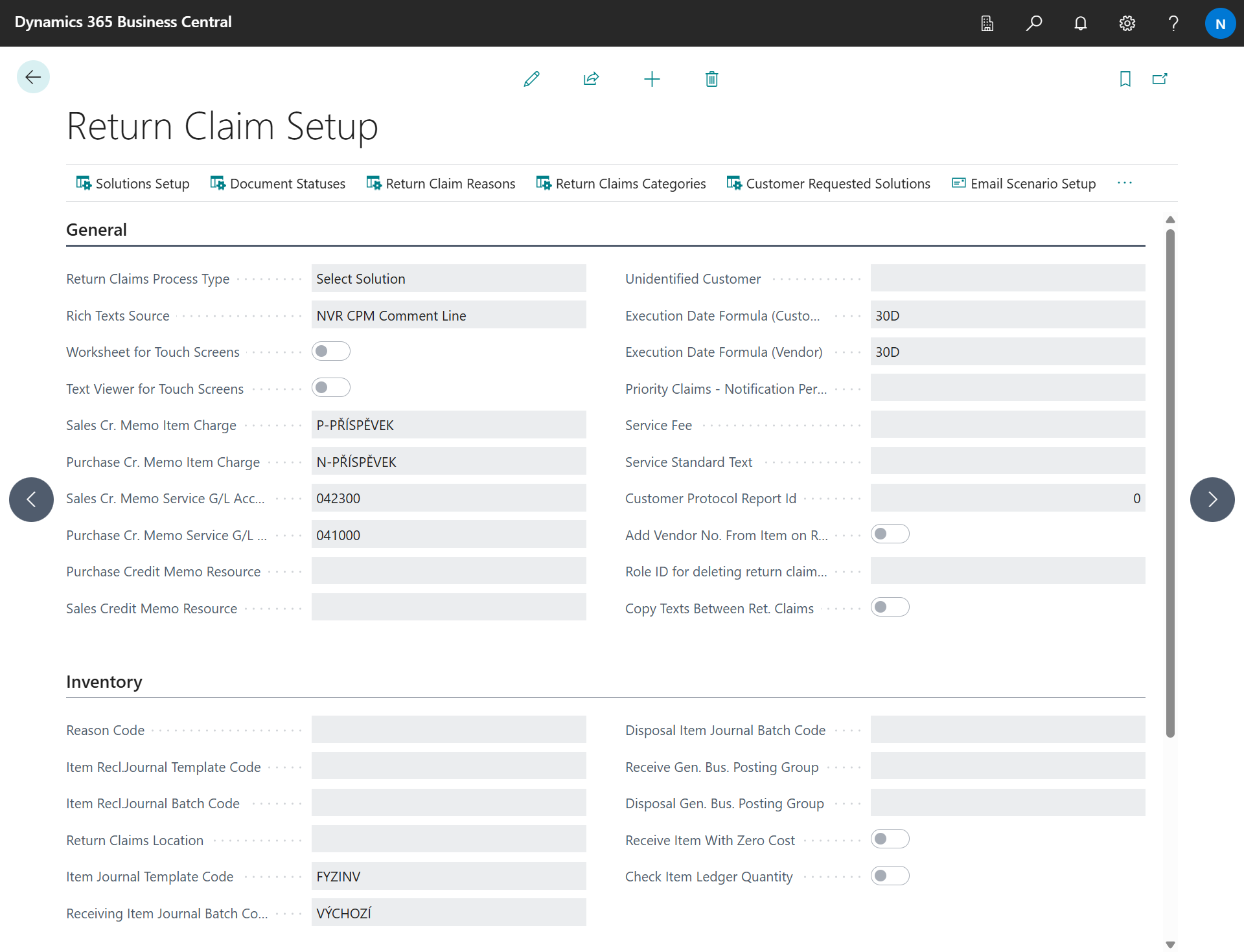
General FastTab
-
Return Claims Process Type - specifies how the processing of Return Claims is handled. The available value is Select Solution - the user selects a solution code on the claim line and runs the Process action.
-
Rich Texts Source - specifies the source of the rich texts (Information texts) used on Return Claim lines.
-
Worksheet for Touch Screens - switches the Create Return Claim Worksheet to a touch screen user interface with a barcode search and configurable buttons.
-
Text Viewer for Touch Screens - switches the text viewer on Return Claim lines to a touch screen user interface.
-
Sales Cr. Memo Item Charge, Purchase Cr. Memo Item Charge - item charges used on the lines of credit memos created by the solution Credit Memo (Charge).
-
Sales Cr. Memo Service G/L Account, Purchase Cr. Memo Service G/L Account - G/L accounts used on credit memos created for claimed services.
-
Purchase Credit Memo Resource, Sales Credit Memo Resource - resources used on the lines of credit memos created by the solution Credit Memo (Resource).
-
Unidentified Customer - the customer number used for Return Claims of unidentified (anonymous) customers.
-
Execution Date Formula (Customer), Execution Date Formula (Vendor) - date formulas used to calculate the Legal Execution Date of a Return Claim (the statutory deadline for the settlement of the claim). The formula can also be set individually on the customer or vendor card in the field Return Claim Execution Date Interval.
-
Priority Claims - Notification Period - the period for filtering Return Claims with an approaching deadline for legal settlement. Claims whose Legal Execution Date falls into this period from the current work date are displayed in the Approaching Return Claims cue of the role center.
-
Service Fee - an item of type Service which is added to Service Lists as a fee line if the claim line is marked as post-warranty.
-
Service Standard Text - the standard text inserted as the first lines of the Service Lists.
-
Customer Protocol Report Id - the report used for printing the customer protocol and for the protocol attachment of customer e-mails.
-
Add Vendor No. From Item on Return Claim Line - if enabled, the vendor number from the item card is filled into the Return Claim line automatically.
-
Role ID for deleting return claim entries - the permission set whose members are allowed to delete Return Claim Entries.
-
Copy Texts Between Ret. Claims - if enabled, line texts are copied between related Return Claims (e.g. from a customer claim to the vendor claim created from it).
Inventory FastTab
-
Reason Code - the reason code used on all documents and postings created from Return Claims.
-
Item Recl.Journal Template Code, Item Recl.Journal Batch Code - the item reclassification journal used by the solution Receive from Ext. Service to return items from the service location.
-
Return Claims Location - the location where claimed items are received and stored.
-
Item Journal Template Code, Receiving Item Journal Batch Code - the item journal used by the solution Receive to Inventory.
-
Disposal Item Journal Batch Code - the item journal batch used by the solution Item Disposal.
-
Receive Gen. Bus. Posting Group, Disposal Gen. Bus. Posting Group - the general business posting groups used when receiving items to inventory and when disposing of items.
-
Receive Item With Zero Cost - if enabled, claimed items are received to inventory with zero cost.
-
Check Item Ledger Quantity - if enabled, the quantity on the Return Claim line is checked against the applied item ledger entry and against the already existing claims of the same entry.
Numbering FastTab
Here the individual number series are set: Return Claim Nos., Disagreement Nos., and the series for the documents created from Return Claims (credit memos, return orders, sales and purchase orders, posted documents). The assisted setup fills them in automatically - the series for the created documents are taken from Sales & Receivables Setup and Purchases & Payables Setup.
Storage FastTab
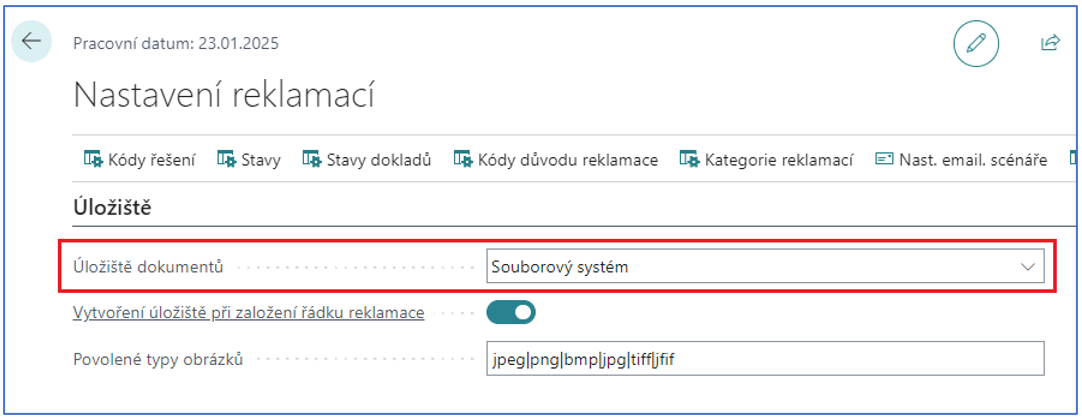
Settings of the storage of files and photos attached to Return Claim lines.
-
Files Storage - the type of storage. Supported types are Azure Blob Storage and SharePoint Online. (An extension application Navertica CPM File system storage adds a file system storage for OnPrem installations.)
-
Create Storage on Create Return Claim Line - if enabled, the folder for the files is created on the storage automatically when a Return Claim line is created. Otherwise it can be created manually with a button on the line.
-
Allowed Image Extensions - the list of image file extensions displayed in the image viewer (default
jpeg|png|bmp|jpg|tiff|jfif). -
Image Height - the height of images in the image viewer (Auto or 100 %).
-
Azure Blob Storage Account Name, Azure Blob Storage Shared Access Key - the connection parameters for the Azure Blob Storage type.
-
SharePoint - ID App (Client), SharePoint - Client Secret, SharePoint - Url, SharePoint - Complaints Document Library - the connection parameters for the SharePoint Online type.
Emails FastTab
-
Send Email on Status Change without UI - if enabled, the notification e-mails on status change are sent without asking the user for confirmation.
-
Send emails on Status change group - six switches (Send Customer Email on Status New, ... Pending, ... To Review, ... Reviewed, ... Finished, ... Closed) which enable the automatic sending of an e-mail to the customer whenever the Return Claim status changes to the given value.
The content of the e-mails is defined in Document Statuses. The sending e-mail account is assigned through the standard Email Scenario Setup (action available on the Return Claim Setup page).
Related Documents Setup FastTab
Here you can define in which tables and fields the Return Claim number is recorded. Documents found through this setup are displayed in the Related Documents FactBox of the Return Claim card in addition to the documents linked through Return Claim Entries.
Return Claim Solution Codes
The Return Claim Solution Codes page defines the methods of solution by which the Return Claim lines are processed. The settings are uniform for customer as well as vendor Return Claims. You can set up any number of solution codes; the action Setup Defaults creates a code for every available solution.
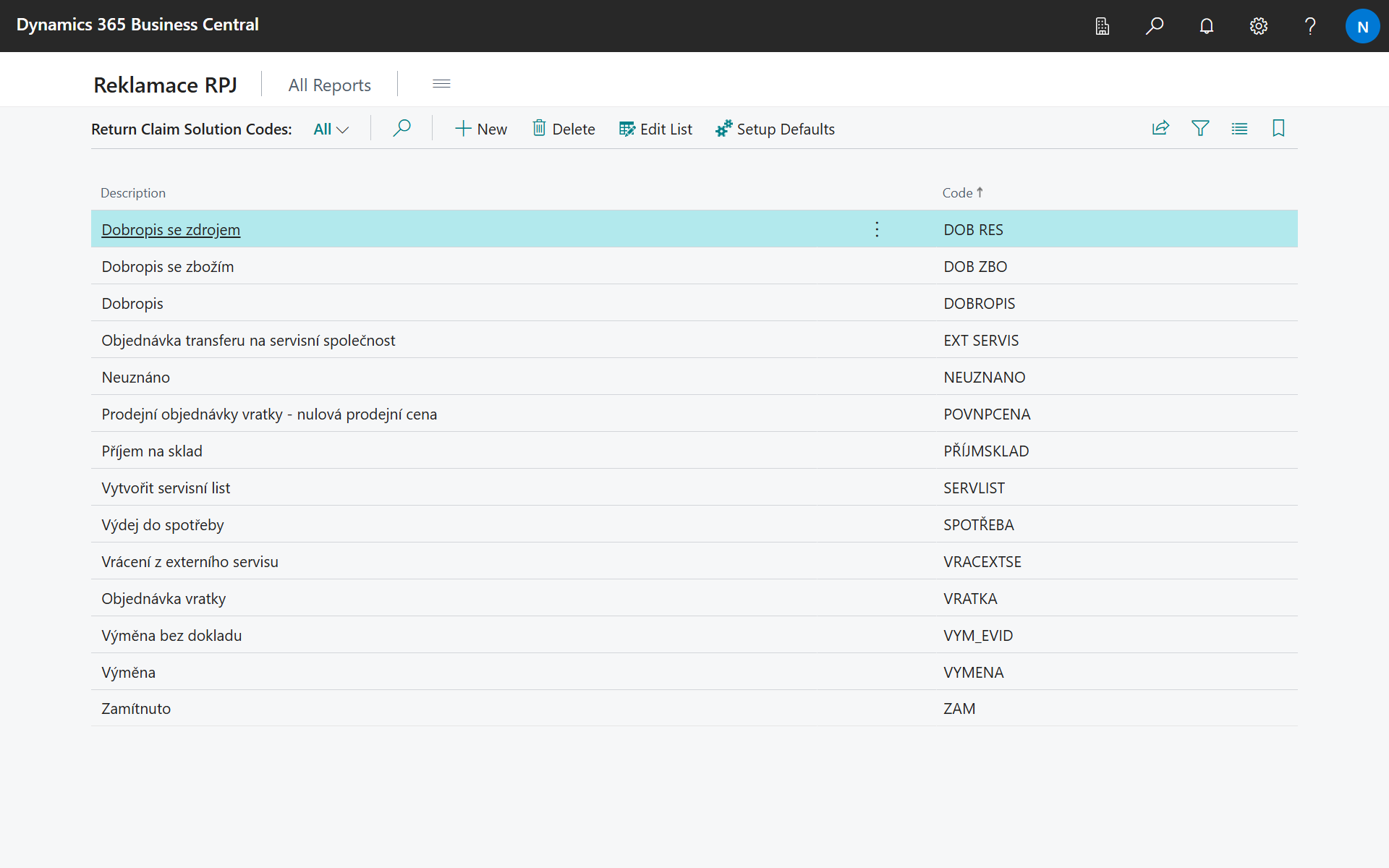
Fields in the table:
-
Code - the code of the given Return Claim solution;
-
Description - description of the given Return Claim solution;
-
Solution - the built-in solution which is executed by the Process action. These options are fixed.
Depending on the selected solution, the Process action creates the following document:
| Solution | Created document / process |
|---|---|
| \<empty> | No document is created; only a Return Claim Entry is written. |
| Credit Memo (Charge) | Sales/Purchase Credit Memo with an item charge line. The charge is assigned automatically to the original document (shipment, receipt or invoice). |
| Return Order (Item) | Sales/Purchase Return Order with the claimed items. |
| Change | Sales/Purchase Order (exchange of the item) with zero price. |
| Credit Memo (Item) | Sales/Purchase Credit Memo with the claimed items. Prices, discounts and item tracking are taken from the original invoice. |
| External Service | Transfer Order from the claim location to the location of the service company. |
| Credit Memo (Resource) | Sales/Purchase Credit Memo with a resource line (see Sales/Purchase Credit Memo Resource in the setup). |
| Receive to Inventory | Posts a positive adjustment of the claimed item to inventory via the item journal. |
| Service List | Sales Order for the external service - the service list for the customer. For post-warranty service, the Service Fee item is added. |
| Receive from Ext. Service | Posts an item reclassification journal which returns the items from the service location back. |
| Item Disposal | Creates and posts a negative adjustment (disposal) of the item in the item journal. |
| Sales Return Order with Zero Price | Sales Return Order with the real unit price and 100 % line discount. |
Document Statuses
The Document Statuses page defines the user statuses (phases) of Return Claims and Disagreements. The action Setup default creates the default set of statuses.
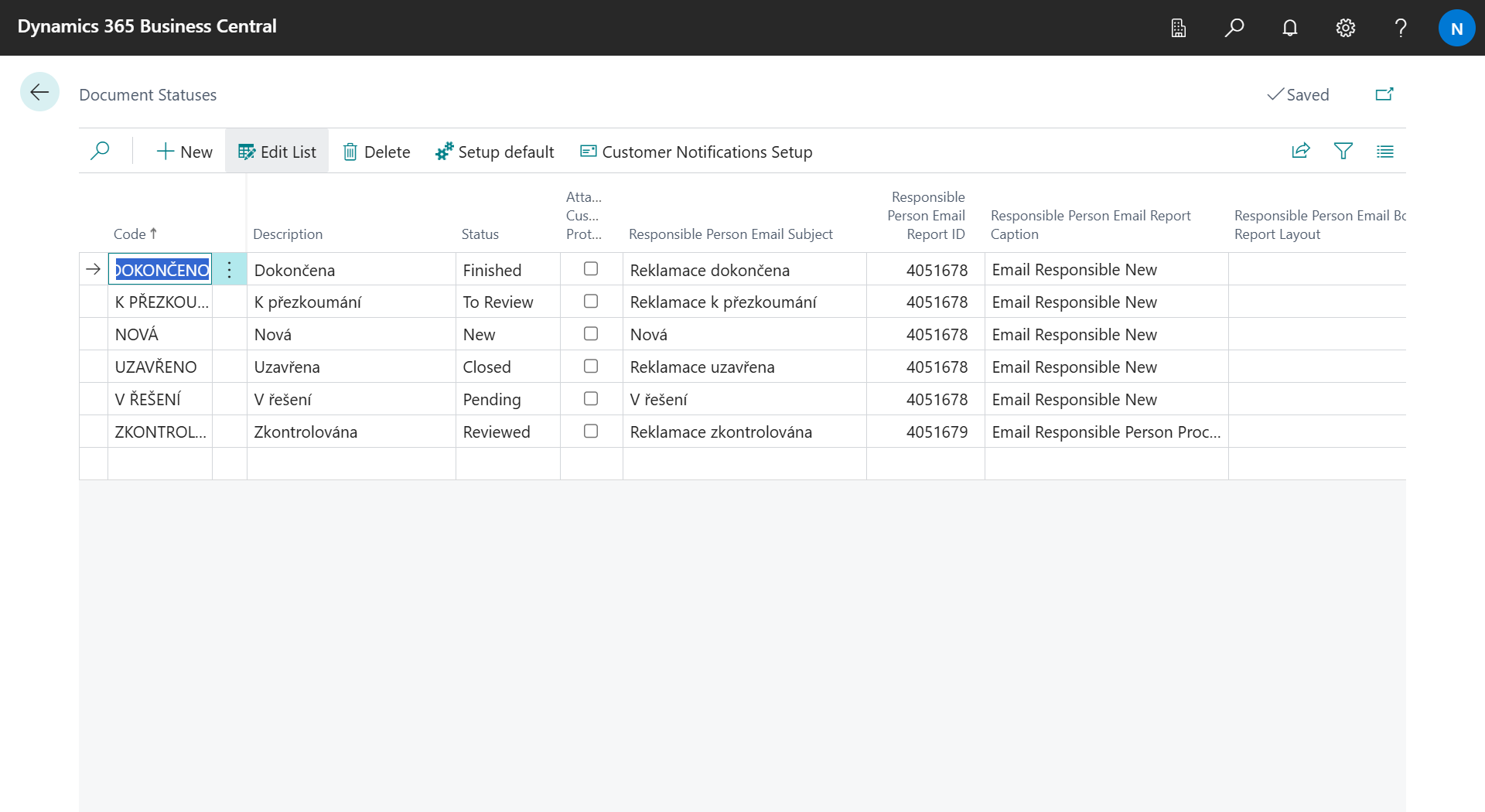
Fields in the table:
-
Code - the visible id of the document status;
-
Description - the name of the document status;
-
Status - the internal status the user status is mapped to. The internal statuses are fixed: New, Pending, To Review, Reviewed, Finished, Closed. Certain processes are bound to the internal statuses - e.g. Closed is the definitive status which moves the Return Claim to the archive. Thanks to the mapping you can define your own status names and still keep this behavior.
For every document status you can also set the e-mail notifications sent on the status change:
-
Responsible Person Email Subject, Responsible Person Email Report ID, Responsible Person Email Body Report Layout - the subject, the report and the layout used to build the body of the e-mail for the responsible person;
-
Solver Email Subject, Solver Email Report ID, Solver Email Body Report Layout - the same for the current solver;
-
Vendor Email Subject, Vendor Email Report ID, Vendor Email Body Report Layout, Attach Vendor Protocol - the same for the vendor of a vendor Return Claim; the vendor protocol can be attached automatically;
-
Attach Customer Protocol - if enabled, the customer protocol is attached to the customer e-mail.
Customer Notifications
The e-mails for customers are defined per language on the page Document Status Customer Notifications (action Customer Notifications Setup). For each document status and language code you define the Email Subject, Email Body Report ID and Email Body Report Layout. The customer then receives the notification in the language of the Return Claim.
Return Claim Reason Codes
Return Claim Reason Codes serve to identify the reason why the Return Claim arose - why did the customer return the item, what is wrong with it.
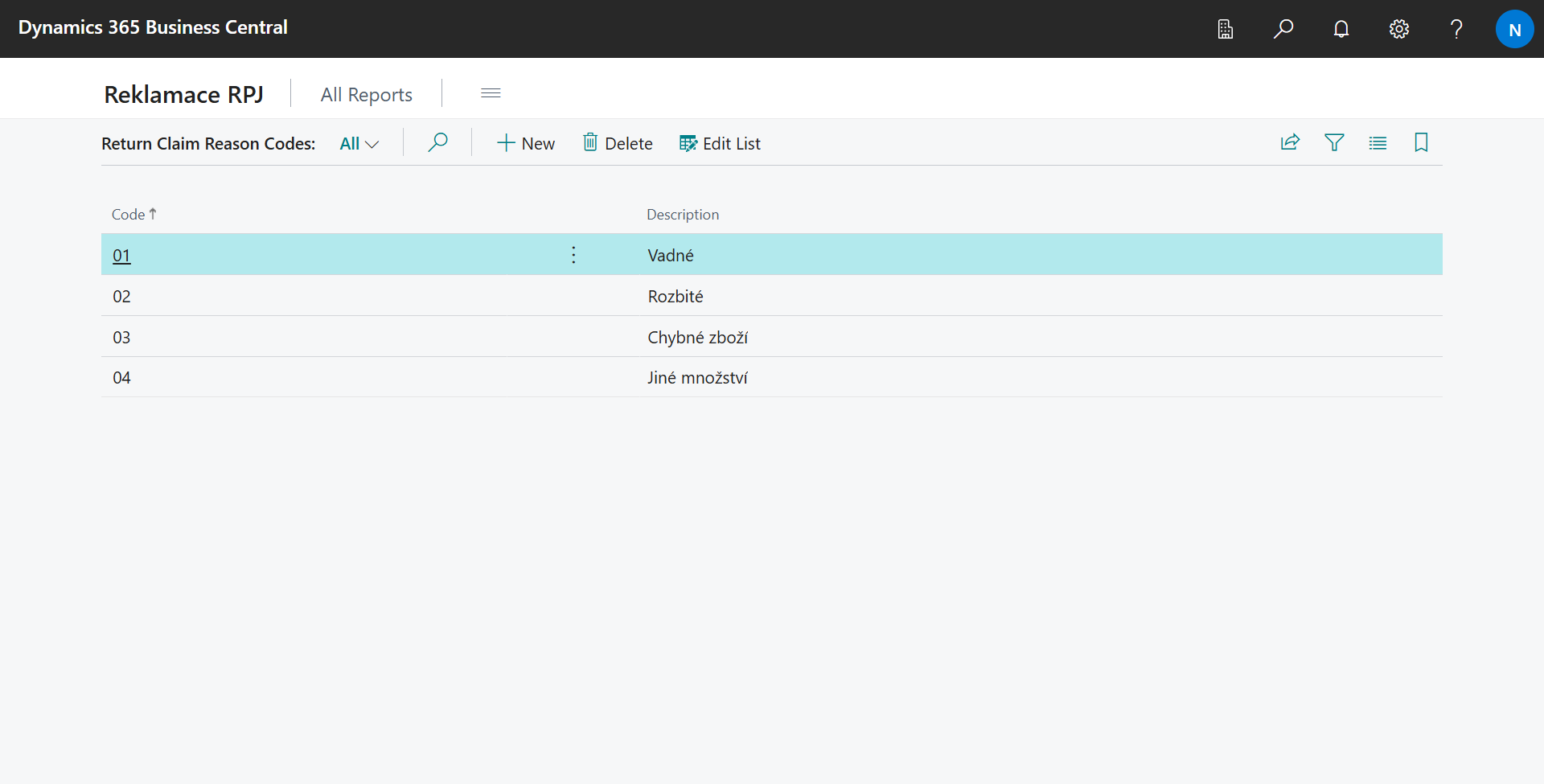
Fields in the table:
-
Code - the field contains the code of the given reason for the Return Claim;
-
Description - the field contains a description of the given reason code of the Return Claim.
Complaint Categories
The Complaint Categories page defines the categories used for the categorization of Return Claims (field Complaint Category on the Return Claim). The table contains the fields Code and Description.
Customer Requested Solutions
The Customer Requested Solutions page defines the code list of solutions which the customer can request when placing the claim (field Customer Required Solution on the Return Claim line). The table contains the fields Code and Solution Name.
Email Scenario Setup
The action Email Scenario Setup on the Return Claim Setup page opens the standard Business Central e-mail scenario assignment. Assign the complaint e-mail scenario to the e-mail account which should be used as the sender of the Return Claim notifications. All e-mails sent for a Return Claim can be displayed directly from the Return Claim card.
Rich Text Viewer Setup
The action Rich Text Viewer Setup opens the Texts Viewer Setup page. Here you define which text types (see the line action Information on the Return Claim) are active and in which order they are displayed in the text viewer. Fields: Text Type, Active, Sorting.
Worksheet Search Priorities
The action Worksheet Search Priorities defines in which order the entities (Posted Sales Invoice, Posted Purchase Invoice, Transfer Receipt, Lot No., Serial No., Package No.) are searched when a barcode is scanned in the Create Return Claim Worksheet. Fields: Priority, Searched Entity.
Page Buttons Setup
The action Page Buttons Setup opens the Page Buttons configuration for the touch screen mode of the worksheet. For each button you define the Button Context, Button Id, Button Description, Buttons Sequence, Button Function and whether it is Activated. The captions of the buttons per language are defined in Button Captions.
Disagreement Problem Codes
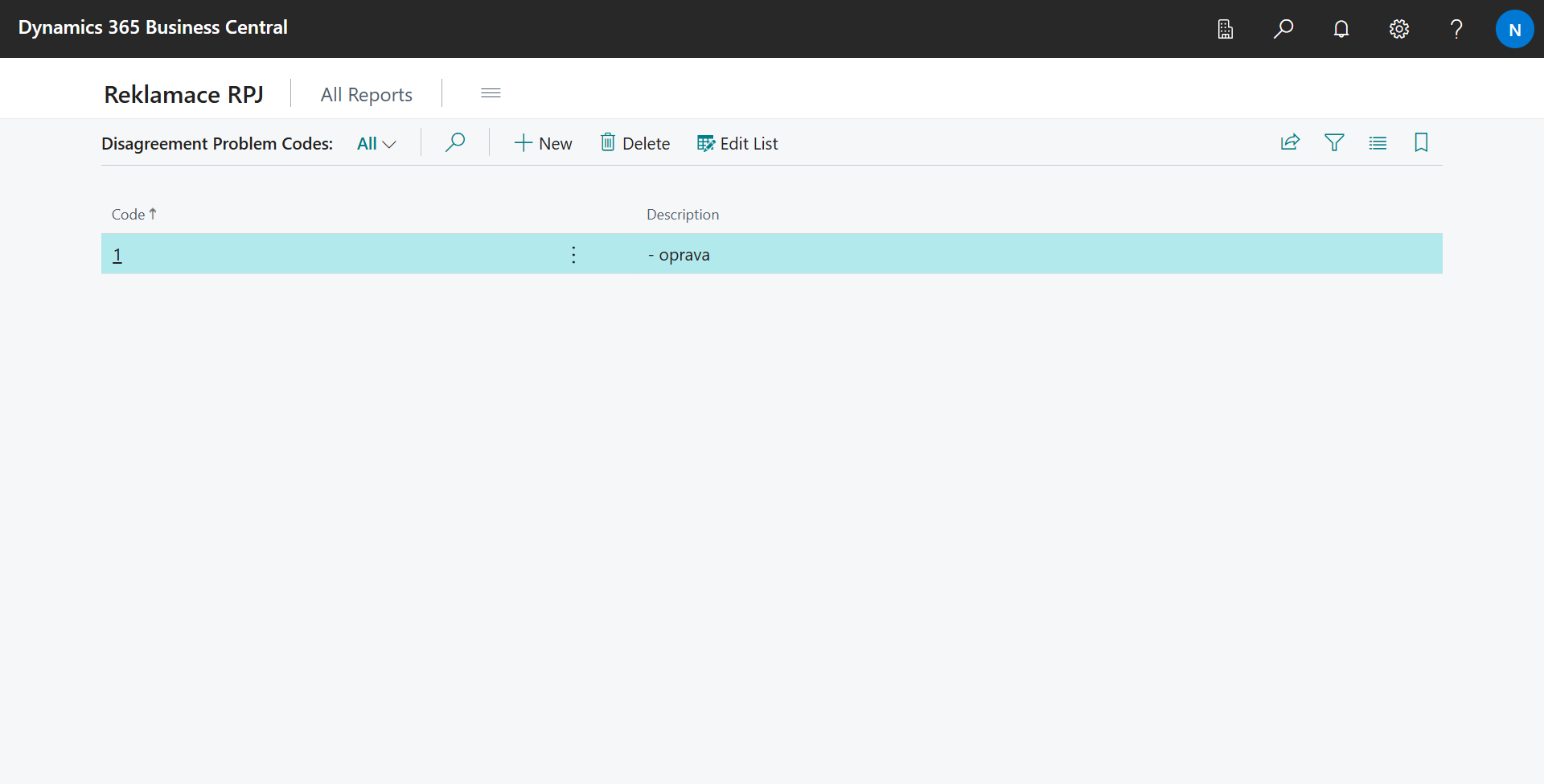
The Disagreement Problem Codes table defines the problems, why the Disagreement arose.
Disagreement Reason Codes
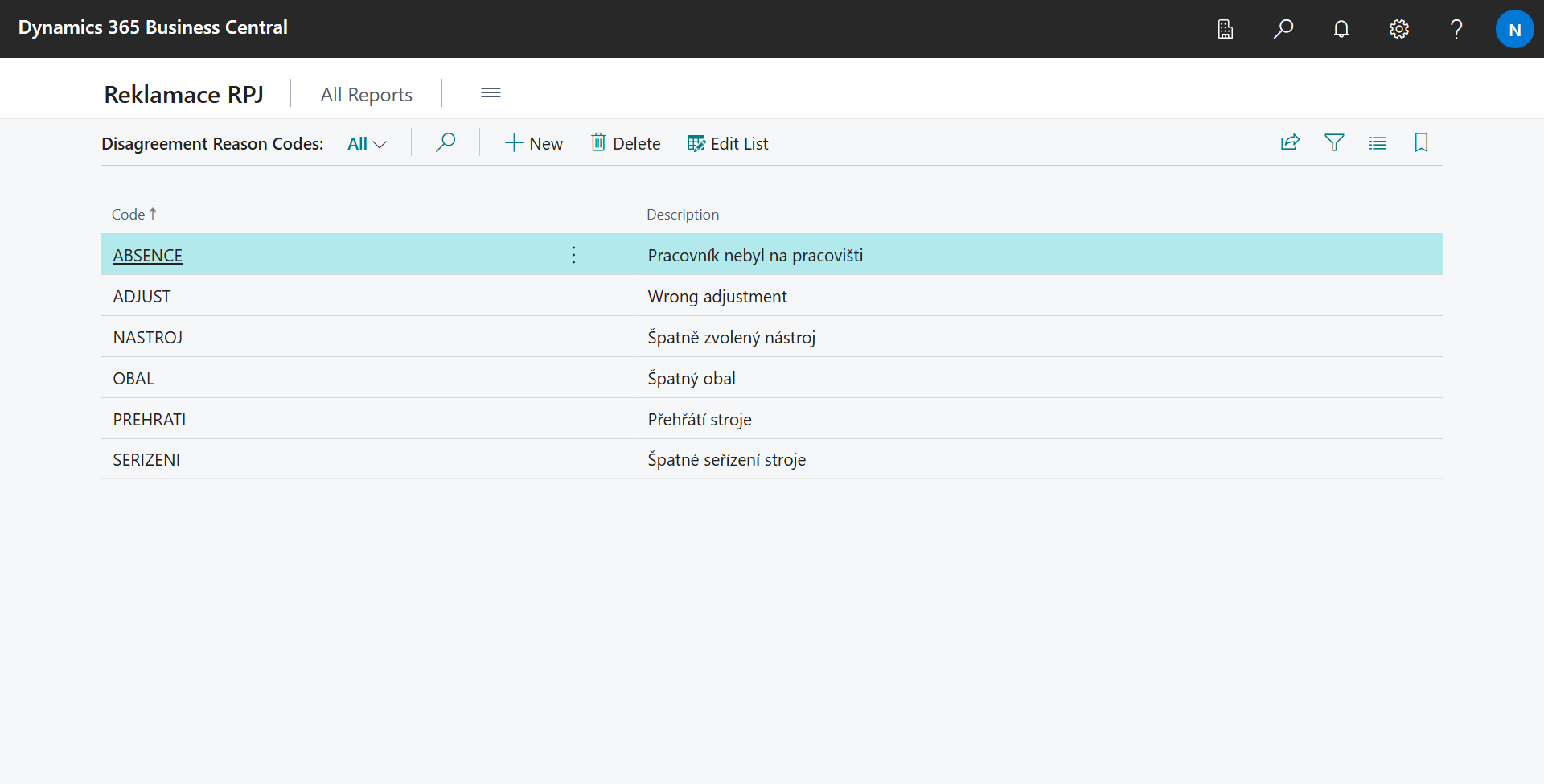
The Disagreement Reason Codes table defines which reasons cause the Disagreement problem.
Disagreement Measures
The Disagreement Measures table defines the preventive measures which can be selected on Disagreement lines of the type Preventive (field Measure Code). The table contains the fields Code and Description.
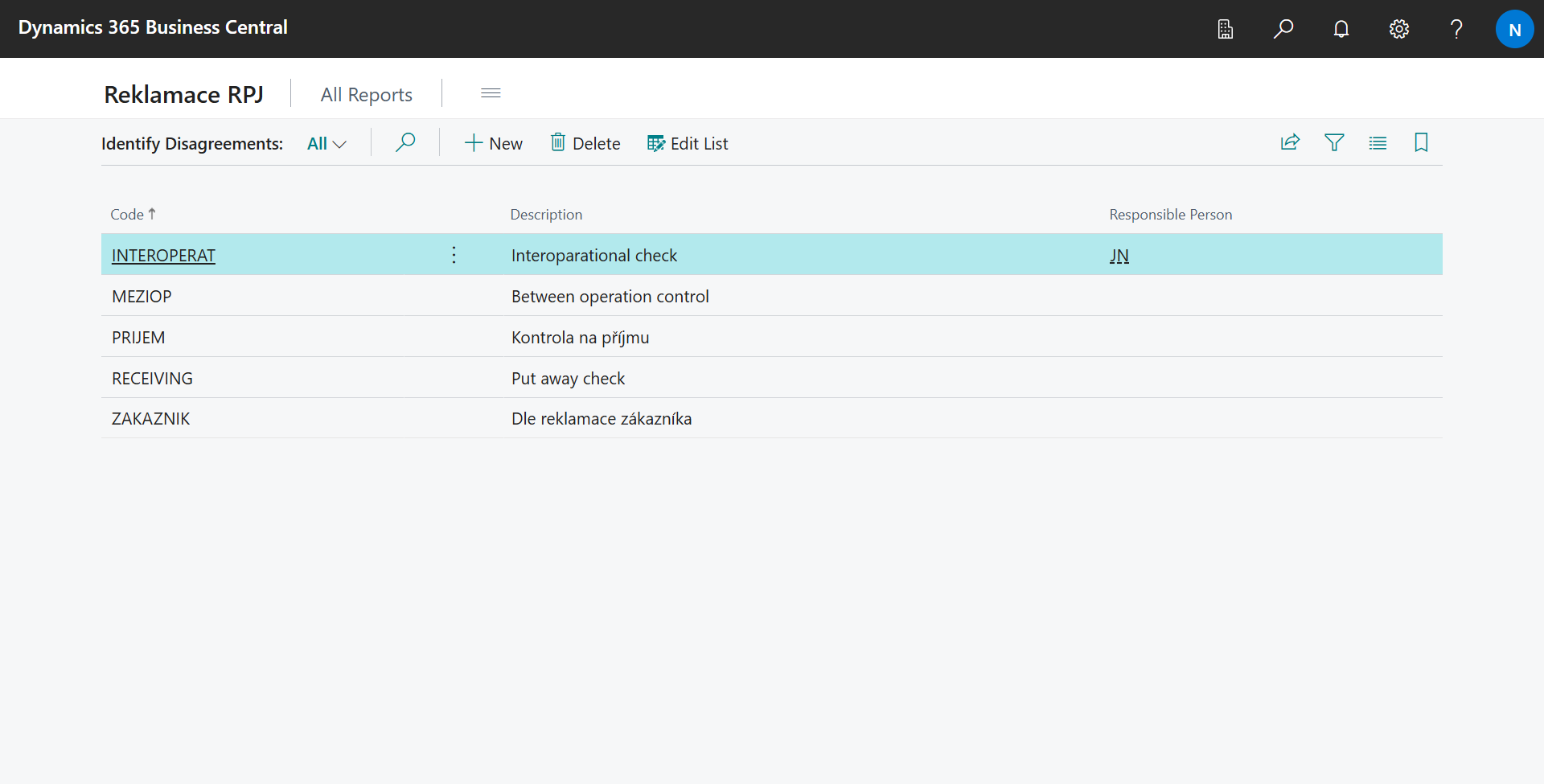
Identify Disagreements
The Identify Disagreements table defines at which control points a Disagreement is detected (e.g. at the entry check, interoperational check etc.). For each code a Responsible Person can be defined - it is then filled into the Disagreement automatically.
Partner Settings
-
On the customer and vendor card, the field Return Claim Execution Date Interval overrides the general execution date formula from Return Claim Setup for the given partner.
-
On the order address of a vendor, the field Service Location marks the address as a location of an external service company. It is used by the External Service solution as the destination location of the transfer order.