Create Return Claim Worksheet
The Create Return Claim Worksheet simplifies the creation of Return Claims. Instead of filling in the Return Claim manually, you search for the claimed items in the posted documents or item ledger entries and create the Return Claim from the found lines. The worksheet is available from the role center and from the Return Claim List (action Create Return Claim Worksheet).
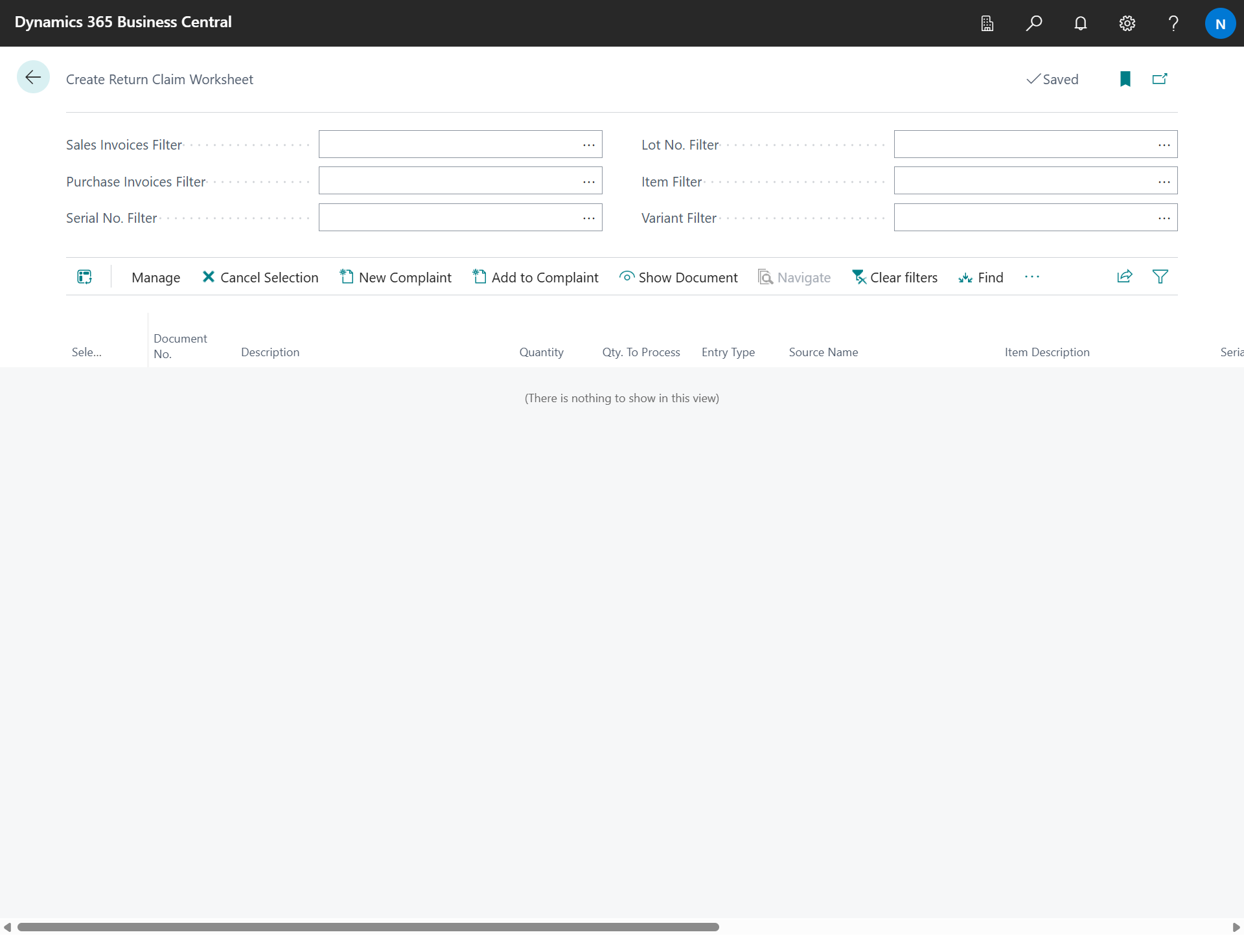
Searching
In the header of the worksheet, the following filters are available:
-
Sales Invoices Filter - filter on posted sales invoices;
-
Purchase Invoices Filter - filter on posted purchase invoices;
-
Serial No. Filter - filter on the serial number of the item;
-
Lot No. Filter - filter on the lot number of the item;
-
Item Filter - filter on the item number;
-
Variant Filter - filter on the item variant.
Fill in one or more filters and choose the action Find. The result of the search is a list of lines (document lines or item ledger entries). Found lines are selected automatically and their Qty. To Process is preset to the full quantity.
Worksheet Lines
For each found line, the following is displayed: Selected, Document No., Description, Quantity, Qty. To Process, Entry Type, Source Name, Item Description, Serial No., Lot No., Package No., Item No., Variant Code, Posting Date, Source Type, Source No. and Location Code.
Use the checkbox Selected to choose the lines to be transferred to the Return Claim and adjust the Qty. To Process (the claimed quantity). The actions Select All and Cancel Selection select or deselect all lines, Clear filters clears the search filters, Show Document opens the source document.
Creating the Return Claim
-
New Complaint - creates a new Return Claim from the selected lines. The Return Claim header is filled in according to the source of the lines (customer or vendor), the lines are created including the item tracking and the application to the original item ledger entries.
-
Add to Complaint - adds the selected lines to an already existing Return Claim. The Return Claim must be in a status with the internal status New.
Touch Screen Mode
If Worksheet for Touch Screens is enabled in the Return Claim Setup, the worksheet is displayed in a touch screen user interface with a barcode search box and large buttons. Scanning a barcode searches the entities in the order defined in Worksheet Search Priorities (Posted Sales Invoice, Posted Purchase Invoice, Transfer Receipt, Lot No., Serial No., Package No.). The displayed buttons and their order are configurable in Page Buttons Setup; the available button functions are Create Return Claim, Add to Return Claim, Posted Sales Invoices, Posted Purchase Invoices, Transfer Receipts, Serial Numbers, Lot Numbers and Package Numbers.