Setup
Before using the OSS functionality you must complete the following configuration steps.
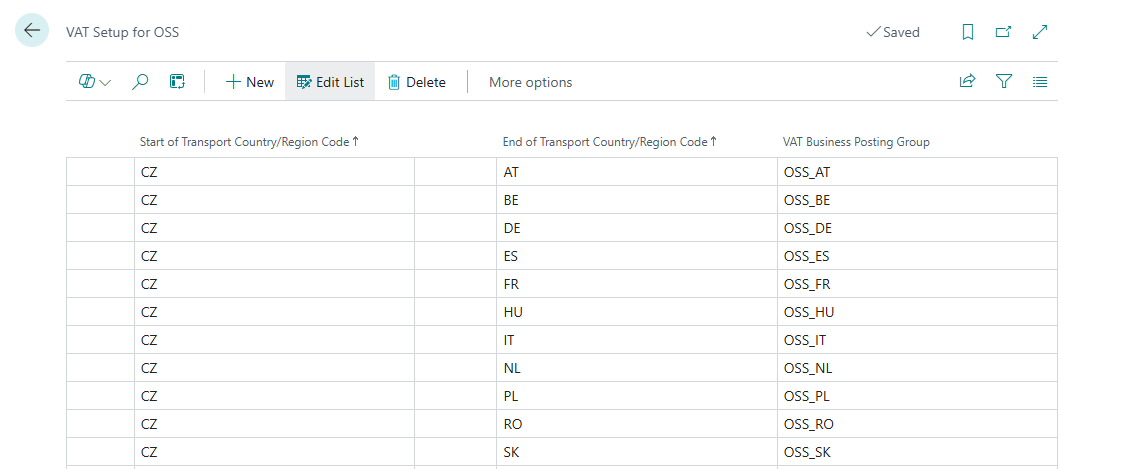
VAT Setup for OSS
Open VAT Setup for OSS (search from the role centre).
Each row defines an active country route — a combination of origin country (where goods are shipped from) and destination country (where they are shipped to) — and maps it to a VAT Business Posting Group.
| Column | Description |
|---|---|
| Start of Transport Country/Region Code | Origin country (typically your company's country) |
| End of Transport Country/Region Code | Destination EU country |
| VAT Bus. Posting Group | The posting group to assign on sales documents for this route |
VAT Business Posting Group — OSS Extension
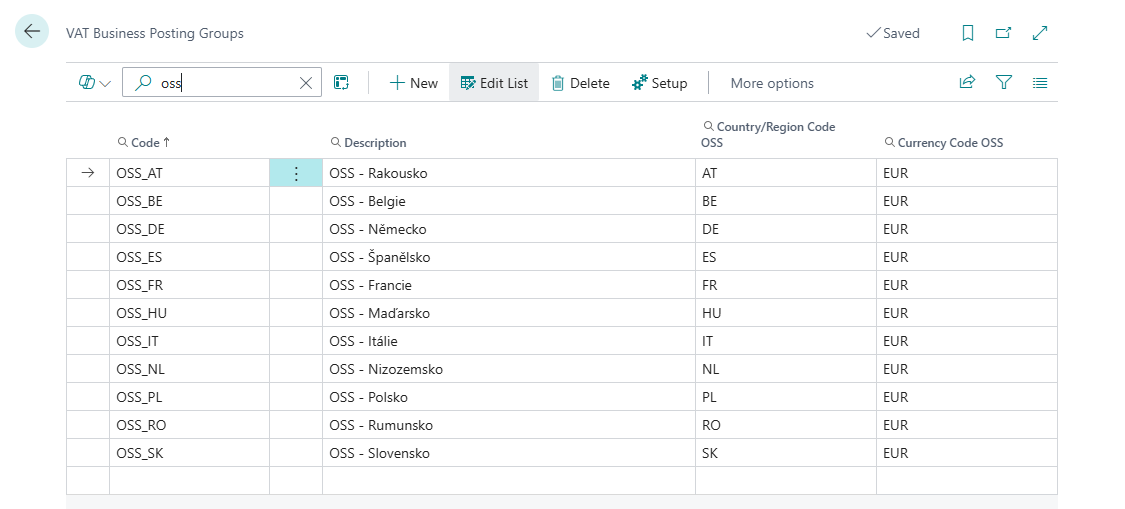
For each VAT Business Posting Group used by OSS, open VAT Business Posting Groups and set:
| Field | Description |
|---|---|
| Country/Region Code OSS | The destination country this group represents |
| Currency Code OSS | The reporting currency for this country (e.g., EUR) |
Item VAT Setup for OSS
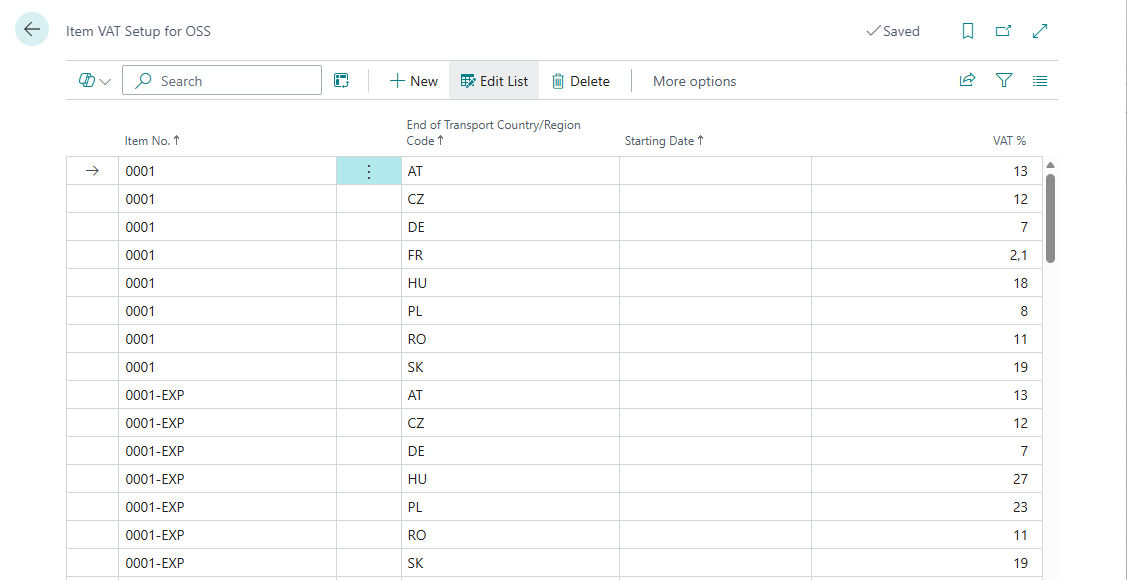
Open Item VAT Setup for OSS.
For each item that is sold under OSS rules define correct VAT rate in % for each country where is sold. For each rate, you can define from when it is valid:
| Column | Description |
|---|---|
| Item No. | The item sold |
| End of Transport Country/Region Code | Destination country |
| Starting Date | Date from which this rate applies |
| VAT % | The applicable VAT rate percentage in the destination country |
Item VAT Rate Setup for OSS
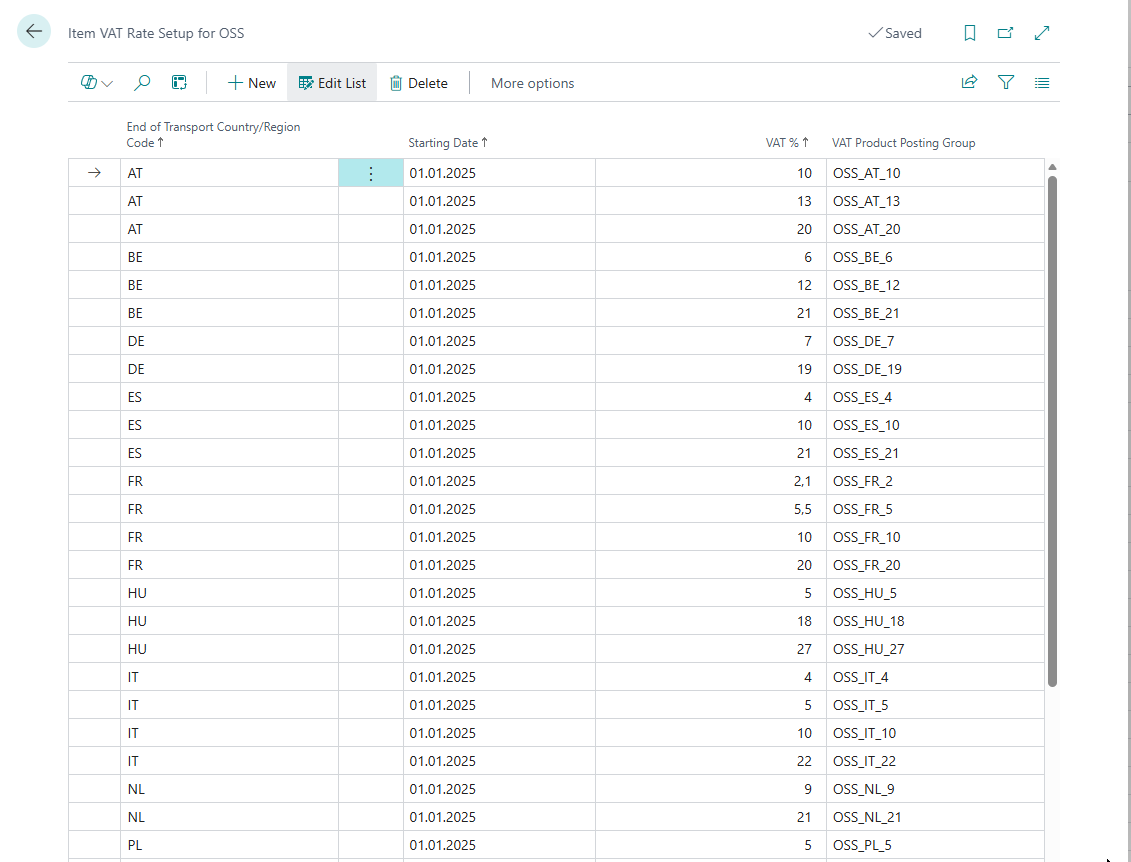
Open Item VAT Rate Setup for OSS.
This table maps a combination of destination country, starting date, VAT % to a BC VAT Product Posting Group:
| Column | Description |
|---|---|
| End of Transport Country/Region Code | Destination country |
| Starting Date | Effective date |
| VAT % | The VAT rate |
| VAT Product Posting Group | The corresponding BC VAT Product Posting Group |
Note
Two VAT posting setup tables for item groups are used because in some cases items may be reassigned from one rate to another, while in other cases the VAT rate itself may change for all items.
VAT Posting Setup — OSS Rate Classification
Open VAT Posting Setup and create each OSS-relevant combination and set for them the VAT Rate field :
| Value | Meaning |
|---|---|
| Base | Standard VAT rate |
| Reduced | First reduced VAT rate |
| Reduced 2 | Second reduced VAT rate |
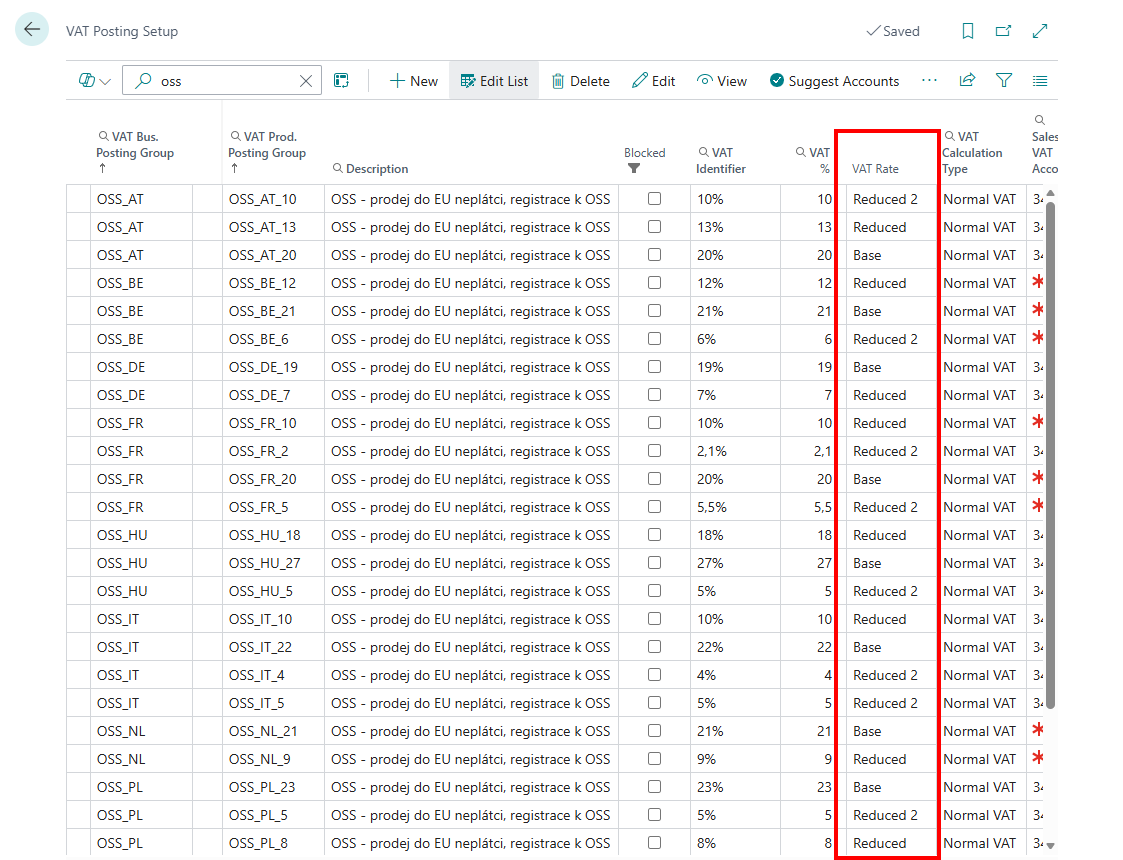
This field is used when printing OSS Statement and during XML export to classify/group lines with the correct rate type code (Z for standard, S for reduced).
General Ledger Setup
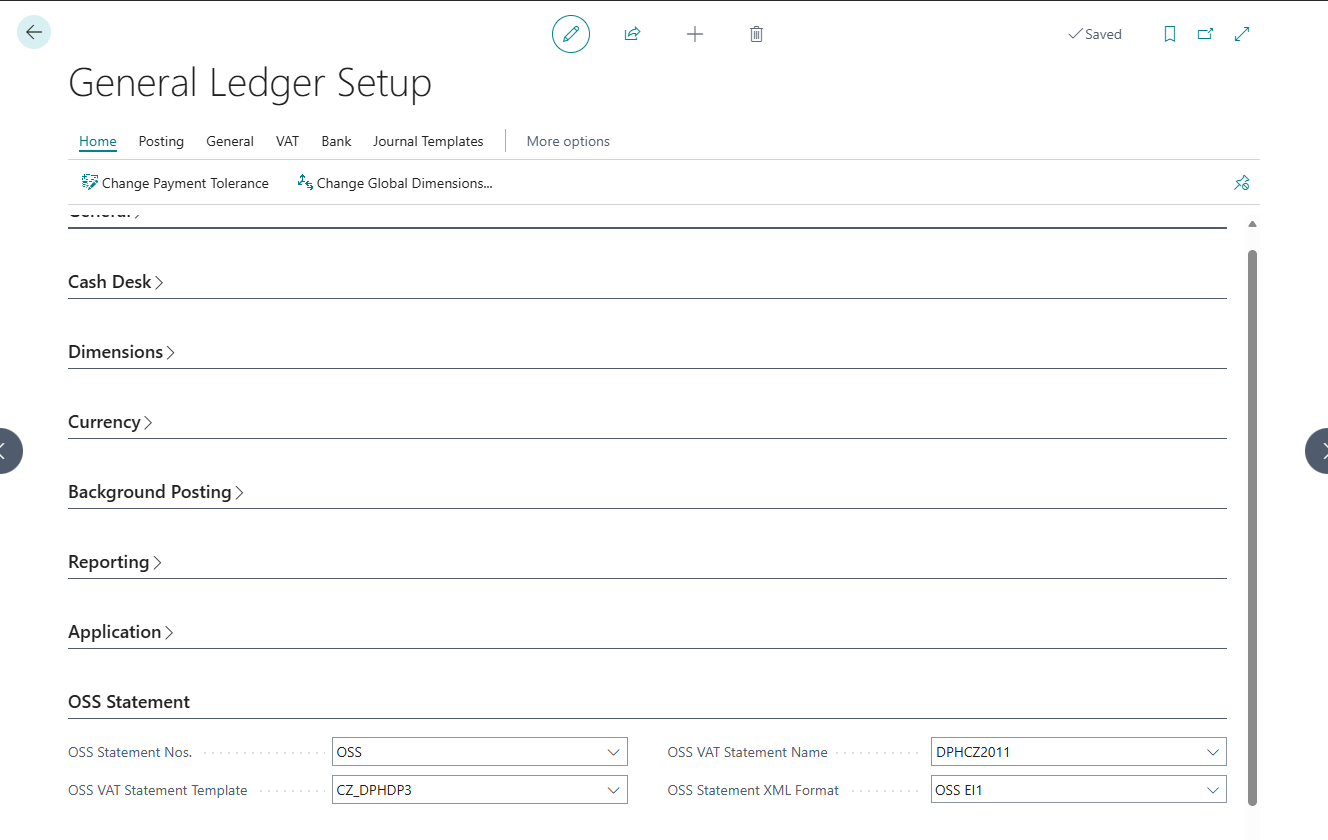
Open General Ledger Setup and scroll to the OSS Statement FastTab.
| Field | What to Enter |
|---|---|
| OSS Statement Nos. | Select (or create) a number series for OSS statement documents |
| OSS VAT Statement Template | The VAT Statement Template whose lines contain OSS entries |
| OSS VAT Statement Name | The specific VAT Statement Name within that template |
| OSS Statement XML Format | Select the export format; currently OSS EI1 |
VAT Statement Setup
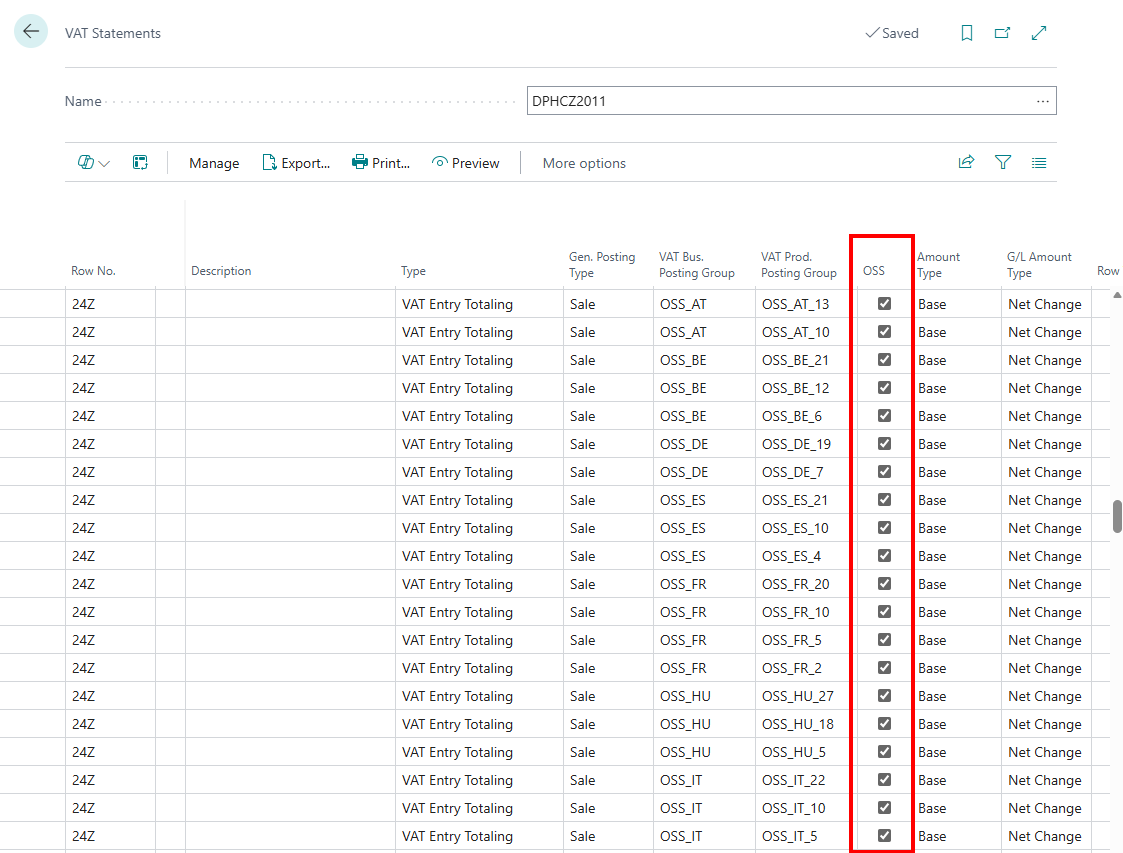
In your VAT Statement definition, mark each relevant line with OSS = Yes. Only lines with this flag will be picked up by the Suggest Lines function when populating an OSS Statement.

Currency Exchange Rates OSS
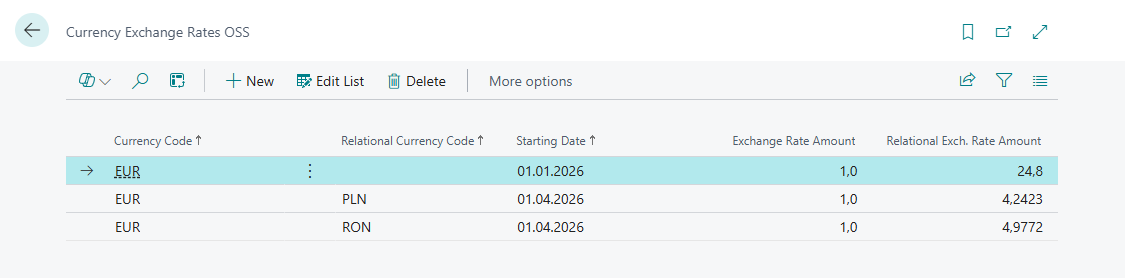
If customers are invoiced in a currency other than OSS currency, open Currency Exchange Rates OSS and maintain OSS-specific exchange rates. This exchange rates will be picked up by the Suggest Lines function when populating an OSS Statement.
| Column | Description |
|---|---|
| Currency Code | The invoice currency |
| Relational Currency Code | The OSS reporting currency (e.g., EUR) |
| Starting Date | Date from which this rate applies |
| Exchange Rate Amount | Amount in the first currency |
| Relational Exch. Rate Amount | Equivalent amount in the second currency |
Customer Setup
Enabling OSS on a Customer (manually)
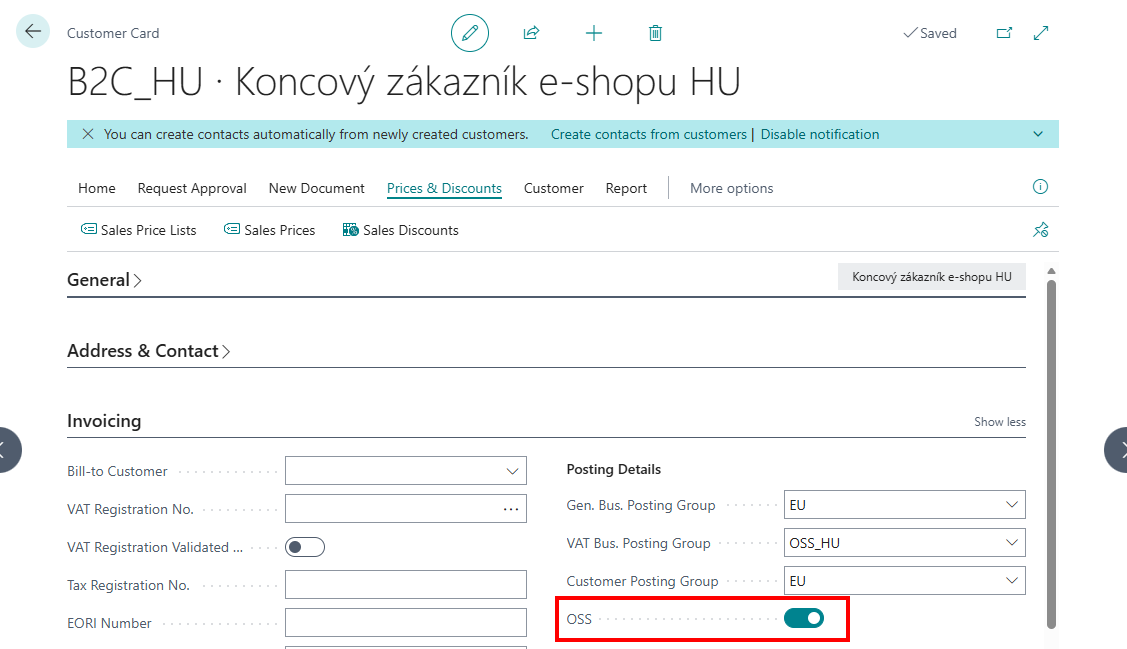
Open a Customer Card. The OSS field (Boolean) is visible in the tab Invoicing.
- Set OSS = Yes to enable OSS handling for this customer.
- OSS can only be activated if the customer has no VAT Registration No. and no Registration Number (company ID). The system enforces this rule with an error if you try to enable OSS for a registered business or VAT payer.
- Conversely, if OSS is active, the system prevents you from entering a VAT Reg. No. or Registration No. for the customer.
Automatic OSS configuration
An action Automatic OSS Configuration has been added to the Customer Card in the Actions / Functions group.
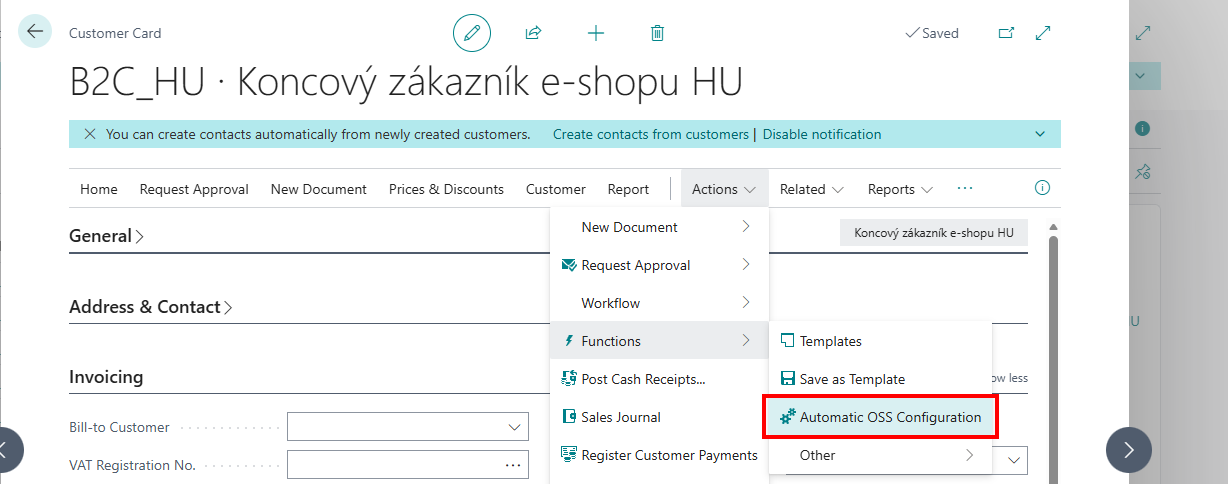
Tooltip:
„The function automatically detects OSS mode for the customer and ensures the correct VAT business posting group is set.”
Function Logic
- Checks whether the customer has a VAT Registration No. or Company Registration No. assigned.
-
If either value exists, OSS is automatically set to No..
-
If neither VAT Registration No. nor Company Registration No. is specified::
- Determines the destination country:
- If a Ship-to Code is specified, the country is taken from the Ship-to Address,
- Otherwise, the country is taken directly from the Customer Card,
- Determines the shipping country:
- The country is derived from the customer's assigned Location.
- Searches for a matching setup record in VAT Setup for OSS.
- Start Country = Shipping Country
- End Country = Destination Country
- If a matching record is found:
- The corresponding VAT Business Posting Group is assigned to the customer,
- OSS is automatically set to Yes.